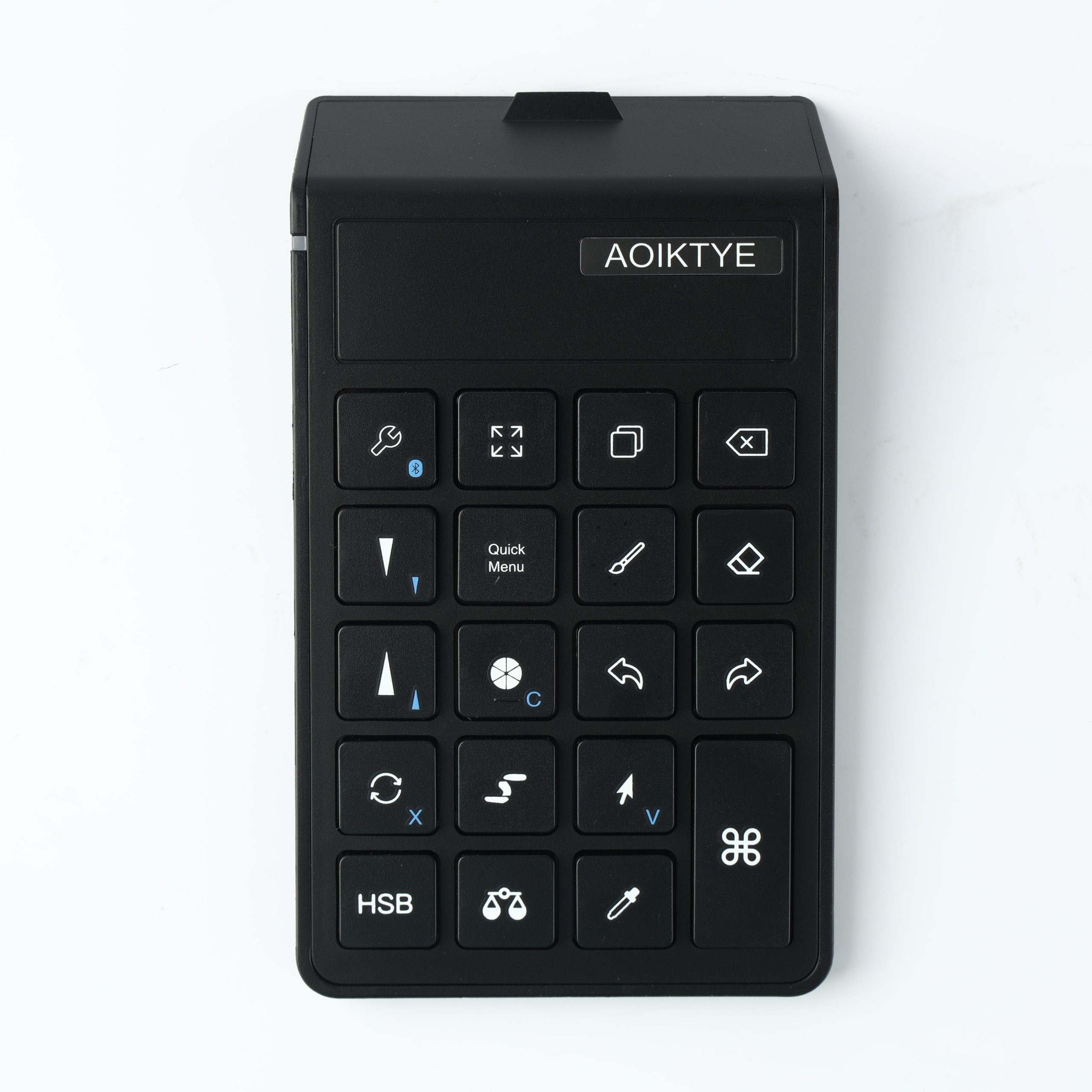
Keyboard shortcuts can make Procreate feel faster, especially when you only learn the commands you use every day.
Start small instead of memorizing everything
Procreate supports keyboard shortcuts with compatible connected keyboards. Beginners do not need to memorize every command. The best approach is to start with repeated actions that interrupt drawing flow.
Beginner shortcut categories to learn first
- Undo and redo: These are the most common correction actions.
- Brush controls: Changing brush size and opacity quickly keeps sketching fluid.
- Color picker: Fast color sampling is useful for painting and shading.
- Layer and canvas controls: Switching views and panels can save time in longer projects.
Recommended AOIKTYE setup
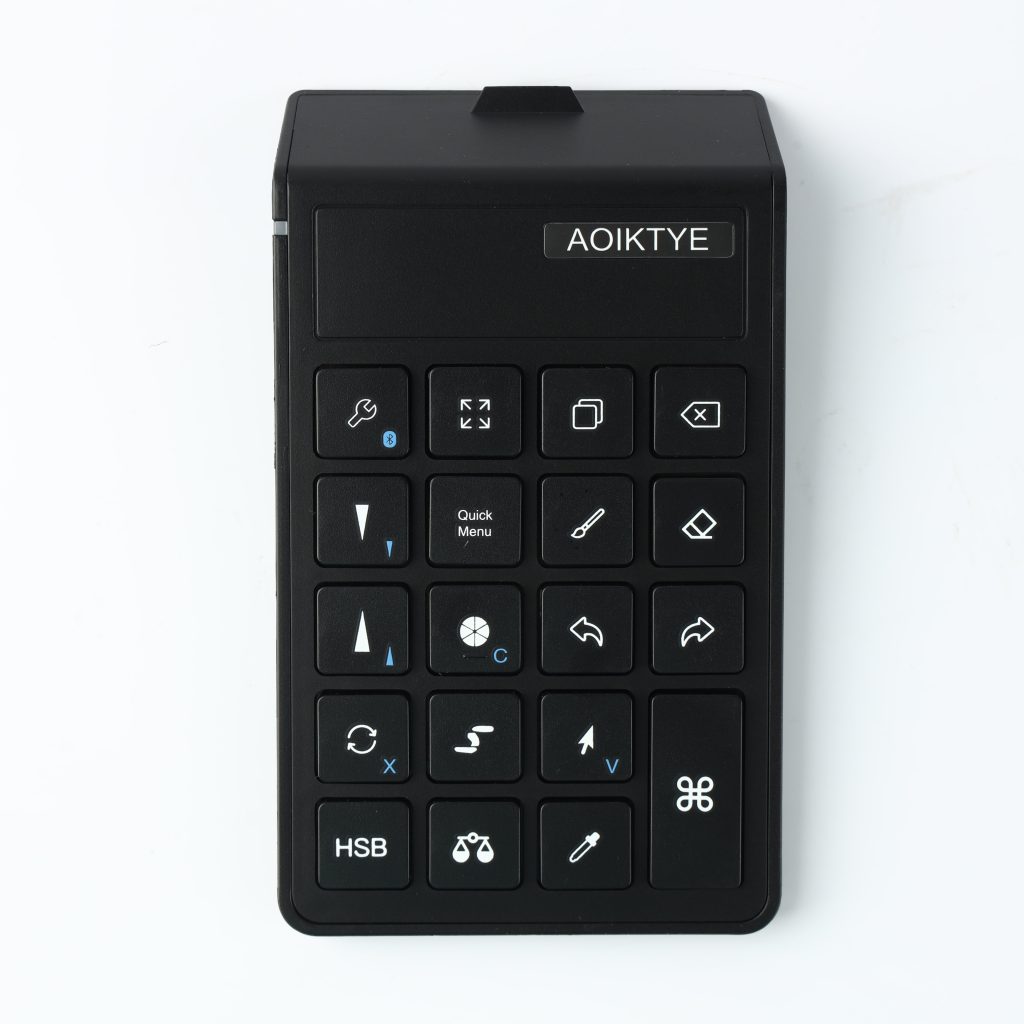
A dedicated shortcut keyboard makes these commands easier to reach with the non-dominant hand.
- AOIKTYE Wireless Shortcut Keyboard for Procreate – left-hand shortcut control for drawing apps
- Magnetic Aluminum Phone and Tablet Stand – a compact stand for iPad, phone, tutorials and desk setup
- Paper-Feel Magnetic Screen Protector – a paper-like surface for better Apple Pencil control
- AOIKTYE iPad Creator Accessories – shop the full creator setup
Practical buying tips
- Learn five shortcuts first, then add more later.
- Place your keyboard where your left hand rests naturally if you draw right-handed.
- Label keys until the layout becomes familiar.
- Use a stable iPad angle so your hands stay in the same position.
Quick FAQ
Can any keyboard work with Procreate?
Procreate says compatible connected keyboards can access keyboard shortcuts. A compact shortcut layout can be easier for drawing desks.
Do shortcuts replace gestures?
No. Many artists use both gestures and physical shortcuts depending on the action.
Final thoughts
A beginner-friendly shortcut setup is about reducing repeated movements. Once the basic keys become muscle memory, Procreate can feel much more direct.