Hand fatigue can make iPad drawing less enjoyable. The fix is usually a combination of better angle, smoother hand movement and fewer repeated gestures.
Why iPad drawing can feel tiring
Drawing on glass is different from drawing on paper. Your hand may grip the Pencil too tightly, your wrist may bend at a bad angle and your drawing hand may constantly reach across the screen for commands.
Accessories that can help comfort
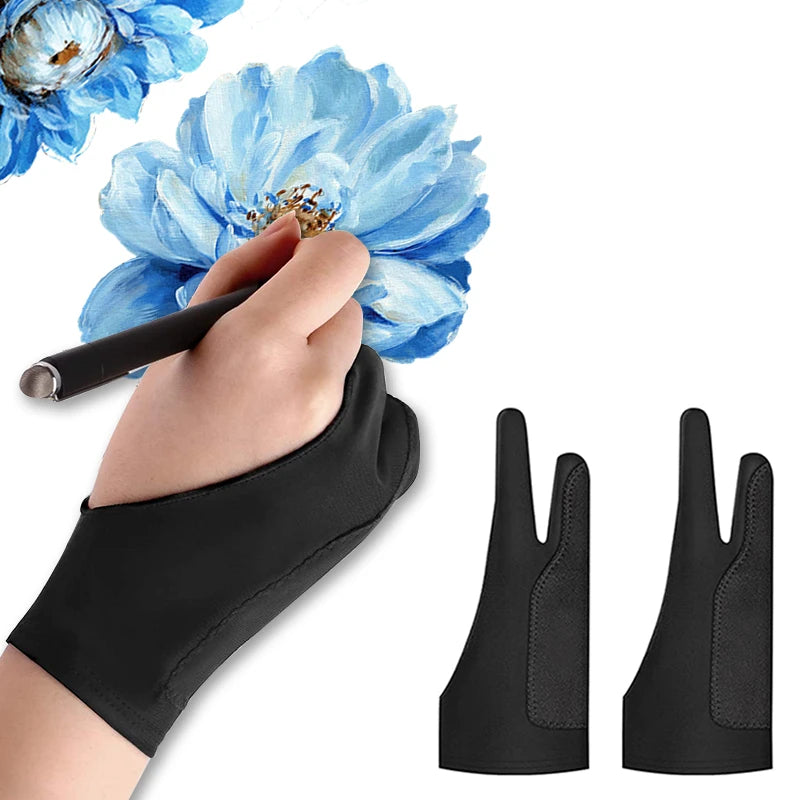
- Artist glove: Reduces friction between your palm and the screen.
- Stand or angled case: Helps keep the wrist and neck in a better position.
- Shortcut keyboard: Moves repeated commands away from the drawing hand.
- Paper-feel surface: Adds friction so the Pencil may feel easier to control.
Recommended AOIKTYE setup
A comfort-focused setup combines hand movement, angle and shortcut control.
- Palm Rejection Artist Gloves – a simple way to reduce friction while drawing
- Magnetic Aluminum Phone and Tablet Stand – a compact stand for iPad, phone, tutorials and desk setup
- AOIKTYE Wireless Shortcut Keyboard for Procreate – left-hand shortcut control for drawing apps
- Paper-Feel Magnetic Screen Protector – a paper-like surface for better Apple Pencil control
Practical buying tips
- Take short breaks during long sessions.
- Relax your grip and let the stylus move naturally.
- Adjust screen angle before starting a long piece.
- Use shortcuts for actions you repeat often.
Quick FAQ
Will an artist glove fix palm rejection?
It can help reduce friction, but palm rejection also depends on the app and device behavior.
Can a shortcut keyboard reduce fatigue?
It can reduce repeated reaching and tapping with the drawing hand.
Final thoughts
Comfort is part of productivity. If your hands and posture feel better, long drawing sessions become easier to enjoy.