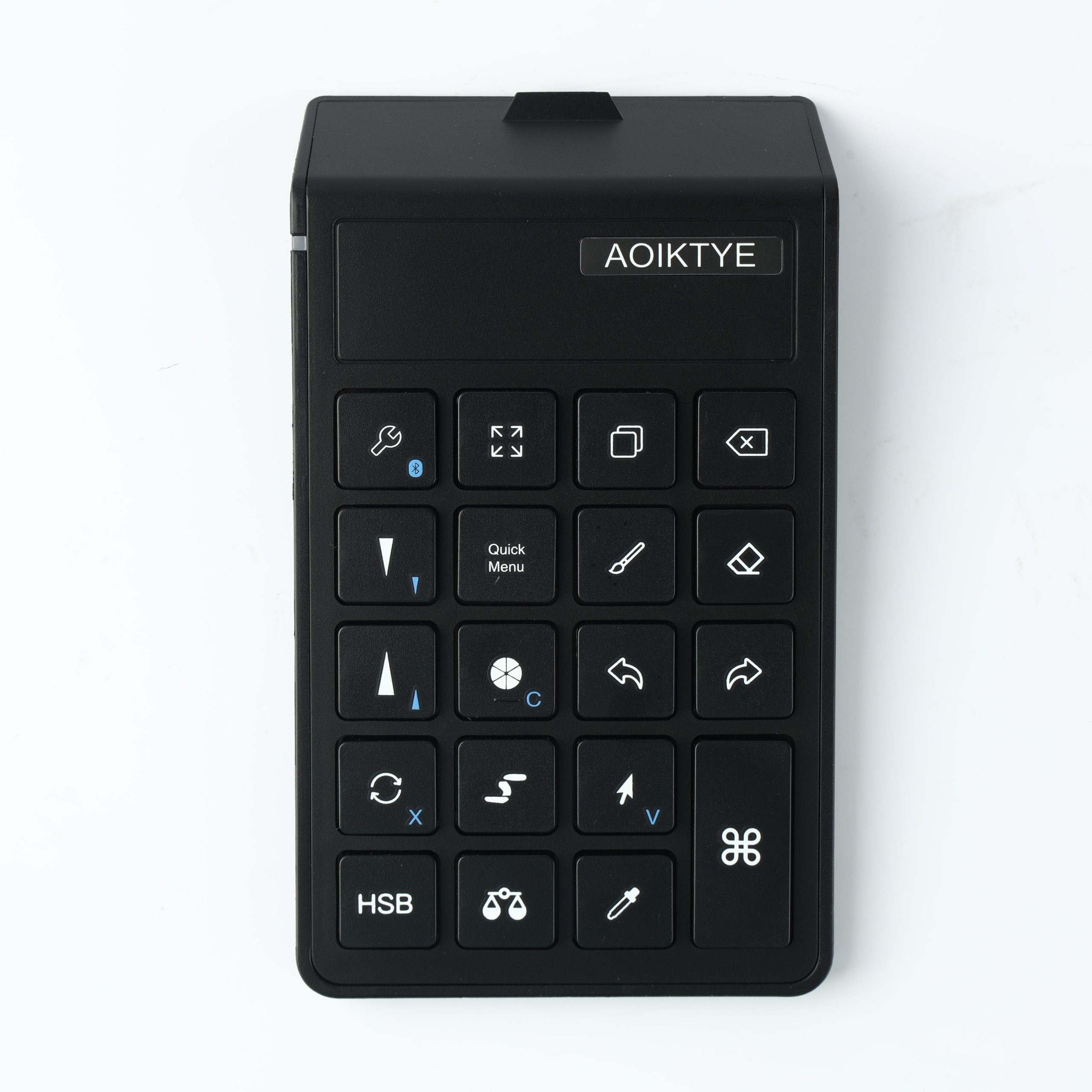
Many Procreate artists draw with one hand and control shortcuts with the other. This left-hand workflow can make drawing feel more like a desktop illustration setup.
The benefit of separating drawing and commands
Your dominant hand is best used for strokes, shapes and details. Your other hand can handle undo, brush size, color sampling and view controls. This separation keeps the canvas feeling more direct.
What left-hand controls can improve
- Drawing rhythm: You do not need to stop strokes to search for controls.
- Speed: Repeated actions become faster after practice.
- Focus: The drawing hand stays on the artwork.
- Consistency: Physical keys can be easier to find than on-screen menus.
Recommended AOIKTYE setup
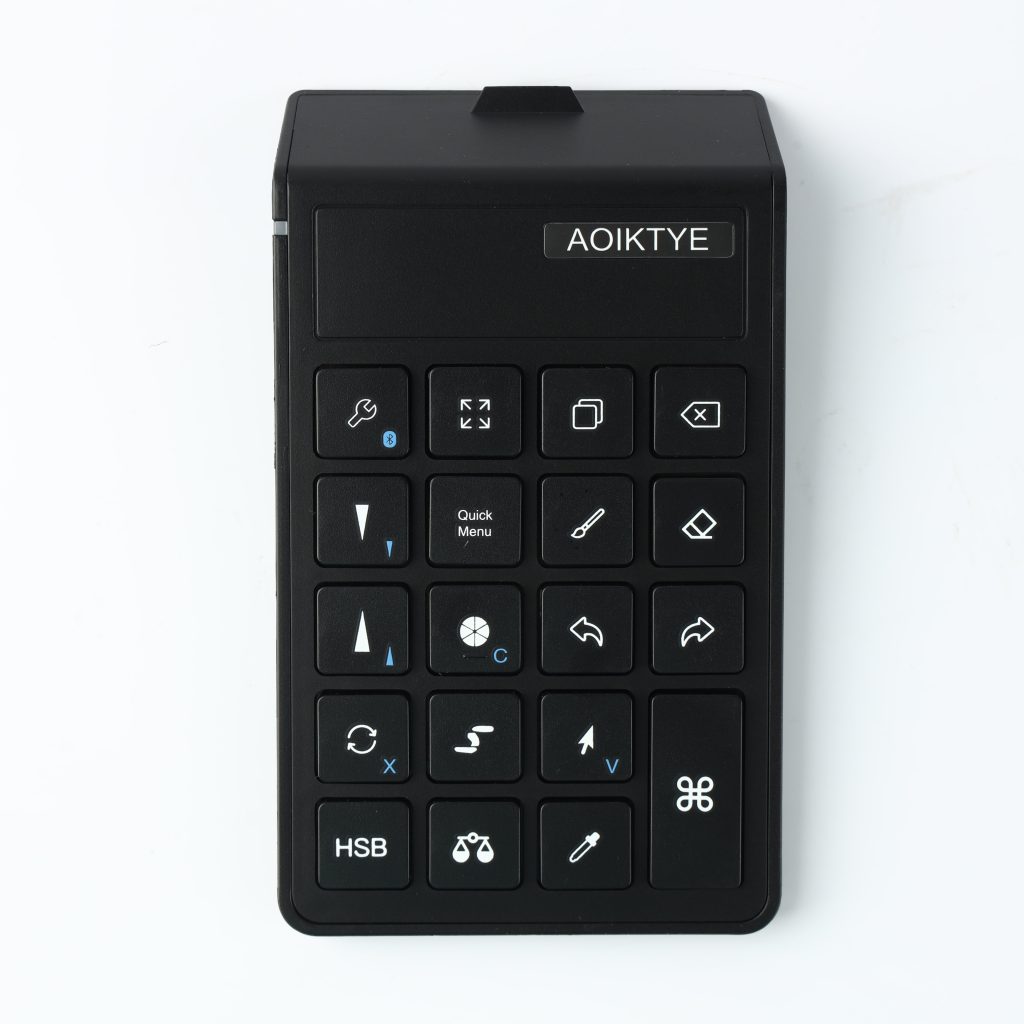
A compact shortcut keyboard is the center of this workflow.
- AOIKTYE Wireless Shortcut Keyboard for Procreate – left-hand shortcut control for drawing apps
- Magnetic Aluminum Phone and Tablet Stand – a compact stand for iPad, phone, tutorials and desk setup
- Paper-Feel Magnetic Screen Protector – a paper-like surface for better Apple Pencil control
- Apple Pencil Replacement Tips – replacement nibs for daily drawing and note-taking
Practical buying tips
- Place controls on the opposite side of your drawing hand.
- Keep the keyboard close enough to reach without stretching.
- Map or learn shortcuts gradually.
- Use the same desk layout each time to build muscle memory.
Quick FAQ
Can left-handed artists use this workflow?
Yes. The idea is to place controls under the non-drawing hand, whichever side that is.
Does it work only in Procreate?
Shortcut behavior depends on the app, but the idea of separating drawing and commands can help in many creative workflows.
Final thoughts
Left-hand controls are not about complexity. They are about letting each hand do the job it is best at.