Posted on Leave a comment

Procreate Shortcut Keyboard for Beginners: What It Actually Helps With

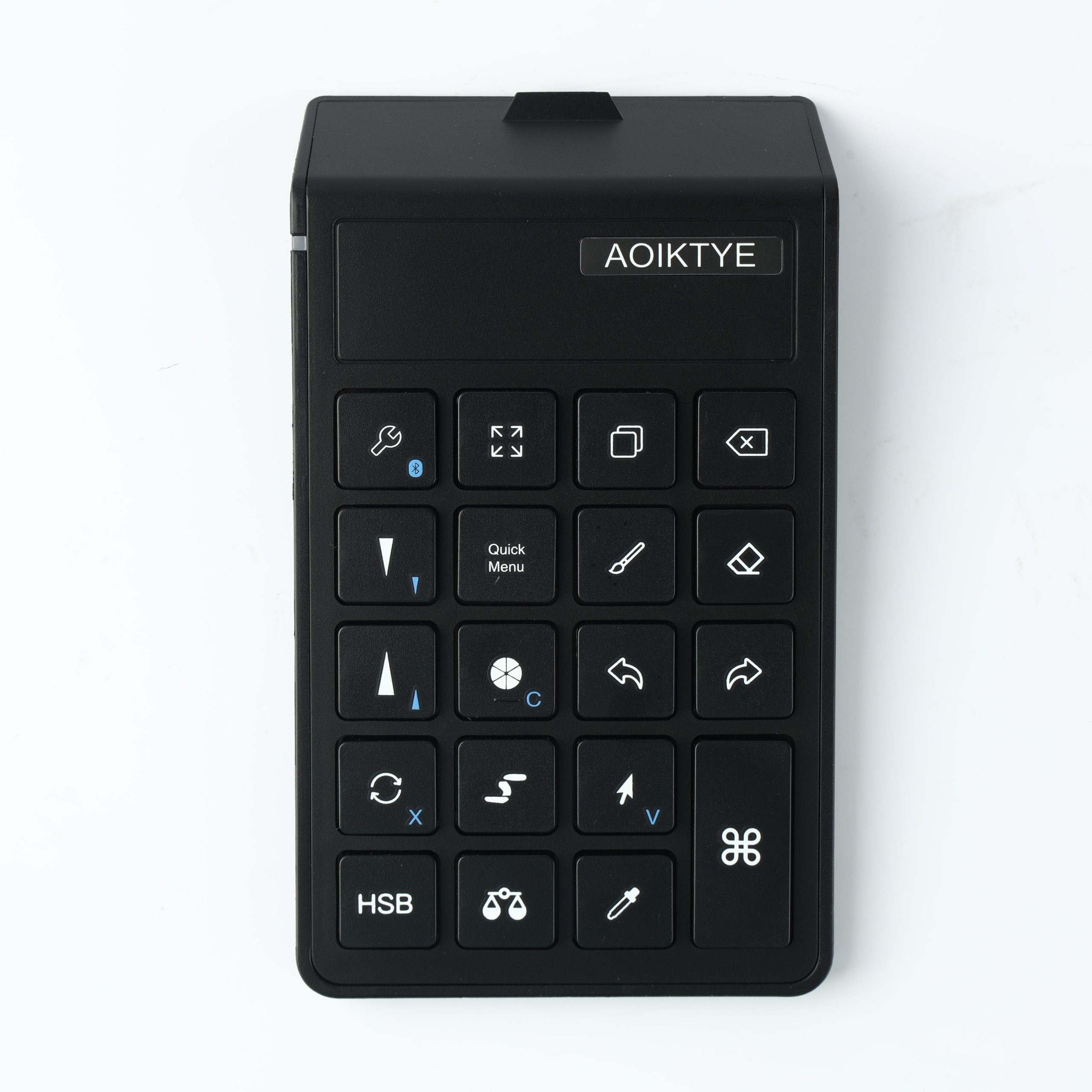
A Procreate shortcut keyboard is useful when you repeat the same actions all the time: undo, redo, brush size, eraser, color picker, and canvas control.

Why Beginners Notice the Difference

New iPad artists often tap the screen constantly while drawing. A small keyboard moves those actions to your other hand, so your drawing hand can stay focused on the Apple Pencil.

Best Shortcuts to Start With

  • Undo and redo
  • Brush and eraser switch
  • Brush size up and down
  • Color picker
  • Canvas zoom or rotate

Who Should Use One?

If you draw in Procreate every week, a shortcut keyboard can make the workflow feel faster and cleaner. If you draw every day, it becomes more useful.

Posted on Leave a comment

Procreate Keyboard Shortcuts That Save Time While Drawing

Not every shortcut matters. For drawing, the most useful shortcuts are the ones you use dozens of times in one session.

1. Undo / Redo

Undo and redo are the first shortcuts to set up. They keep your drawing rhythm fast when testing lines or colors.

2. Brush Size

Changing brush size quickly helps when moving between sketching, line art, and detail work.

3. Brush / Eraser Switch

This is useful for cleaning line art and refining silhouettes without breaking focus.

4. Color Picker

Color picking is helpful when painting fruit, skin, shadows, and soft gradients.

Posted on Leave a comment

iPad Drawing Setup With a Shortcut Keyboard

A good iPad drawing setup is not about having more accessories. It is about placing the right tools where they reduce repeated movements.

Place the Keyboard on Your Non-Drawing Side

If you draw with your right hand, place the keyboard on the left. If you draw with your left hand, place it on the right.

Keep the iPad at a Comfortable Angle

A raised angle helps reduce wrist strain and keeps the screen easier to see during longer drawing sessions.

Start With Five Keys

Do not map every shortcut on day one. Start with undo, redo, brush, eraser, and brush size.

Posted on Leave a comment

Is a Shortcut Keyboard Worth It for Procreate?

A shortcut keyboard is worth it if you draw often enough that repeated screen taps slow you down. It is not required, but it can make Procreate feel more efficient.

Worth It If You…

  • Draw in Procreate several times a week
  • Use undo and redo constantly
  • Switch between brush and eraser often
  • Work on line art, coloring, or client pieces
  • Want a cleaner two-hand workflow

Not Necessary If You…

  • Only draw casually once in a while
  • Prefer using touch gestures for everything
  • Do not like extra desk tools

For regular iPad artists, the main value is workflow speed. The more you draw, the more useful shortcuts become.

Posted on Leave a comment

Procreate Workflow: Before and After Using a Shortcut Keyboard

The biggest difference is not one single shortcut. It is the way small repeated actions stop interrupting your drawing flow.

Before

  • Tap the screen to undo
  • Open menus to adjust tools
  • Pause often to switch between brush and eraser
  • Lose rhythm while cleaning line art

After

  • Use one hand for shortcuts
  • Keep the Apple Pencil moving
  • Change tools faster
  • Spend more time drawing and less time navigating

This is why shortcut keyboards are useful for Procreate artists who draw frequently.