Posted on Leave a comment

Procreate Workflow: Before and After Using a Shortcut Keyboard

The biggest difference is not one single shortcut. It is the way small repeated actions stop interrupting your drawing flow.

Before

  • Tap the screen to undo
  • Open menus to adjust tools
  • Pause often to switch between brush and eraser
  • Lose rhythm while cleaning line art

After

  • Use one hand for shortcuts
  • Keep the Apple Pencil moving
  • Change tools faster
  • Spend more time drawing and less time navigating

This is why shortcut keyboards are useful for Procreate artists who draw frequently.

Posted on Leave a comment

Is a Shortcut Keyboard Worth It for Procreate?

A shortcut keyboard is worth it if you draw often enough that repeated screen taps slow you down. It is not required, but it can make Procreate feel more efficient.

Worth It If You…

  • Draw in Procreate several times a week
  • Use undo and redo constantly
  • Switch between brush and eraser often
  • Work on line art, coloring, or client pieces
  • Want a cleaner two-hand workflow

Not Necessary If You…

  • Only draw casually once in a while
  • Prefer using touch gestures for everything
  • Do not like extra desk tools

For regular iPad artists, the main value is workflow speed. The more you draw, the more useful shortcuts become.

Posted on Leave a comment

iPad Drawing Setup With a Shortcut Keyboard

A good iPad drawing setup is not about having more accessories. It is about placing the right tools where they reduce repeated movements.

Place the Keyboard on Your Non-Drawing Side

If you draw with your right hand, place the keyboard on the left. If you draw with your left hand, place it on the right.

Keep the iPad at a Comfortable Angle

A raised angle helps reduce wrist strain and keeps the screen easier to see during longer drawing sessions.

Start With Five Keys

Do not map every shortcut on day one. Start with undo, redo, brush, eraser, and brush size.

Posted on Leave a comment

Procreate Keyboard Shortcuts That Save Time While Drawing

Not every shortcut matters. For drawing, the most useful shortcuts are the ones you use dozens of times in one session.

1. Undo / Redo

Undo and redo are the first shortcuts to set up. They keep your drawing rhythm fast when testing lines or colors.

2. Brush Size

Changing brush size quickly helps when moving between sketching, line art, and detail work.

3. Brush / Eraser Switch

This is useful for cleaning line art and refining silhouettes without breaking focus.

4. Color Picker

Color picking is helpful when painting fruit, skin, shadows, and soft gradients.

Posted on Leave a comment

Procreate Shortcut Keyboard for Beginners: What It Actually Helps With

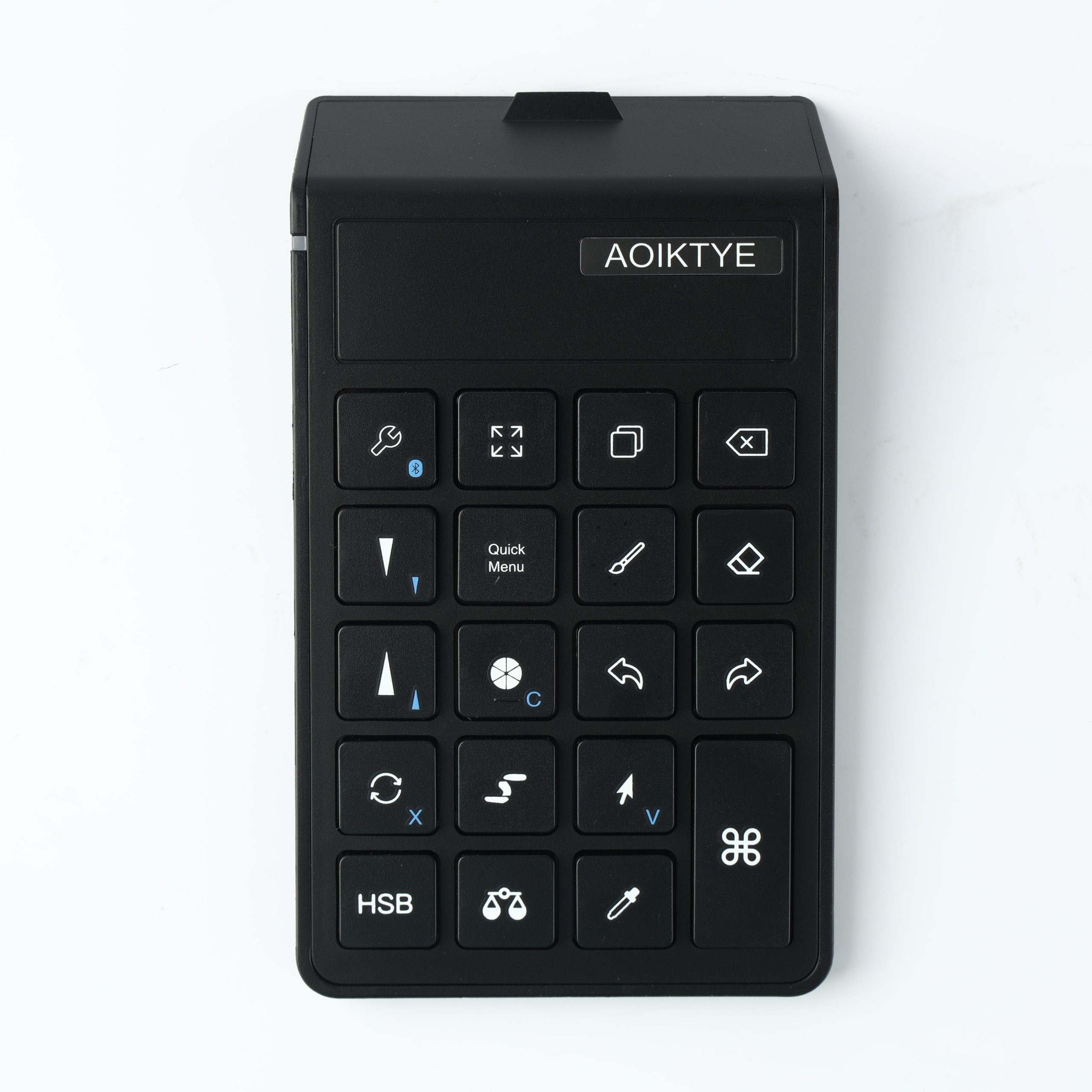
A Procreate shortcut keyboard is useful when you repeat the same actions all the time: undo, redo, brush size, eraser, color picker, and canvas control.

Why Beginners Notice the Difference

New iPad artists often tap the screen constantly while drawing. A small keyboard moves those actions to your other hand, so your drawing hand can stay focused on the Apple Pencil.

Best Shortcuts to Start With

  • Undo and redo
  • Brush and eraser switch
  • Brush size up and down
  • Color picker
  • Canvas zoom or rotate

Who Should Use One?

If you draw in Procreate every week, a shortcut keyboard can make the workflow feel faster and cleaner. If you draw every day, it becomes more useful.

Posted on Leave a comment

5 Easy Procreate Drawing Ideas for Beginners

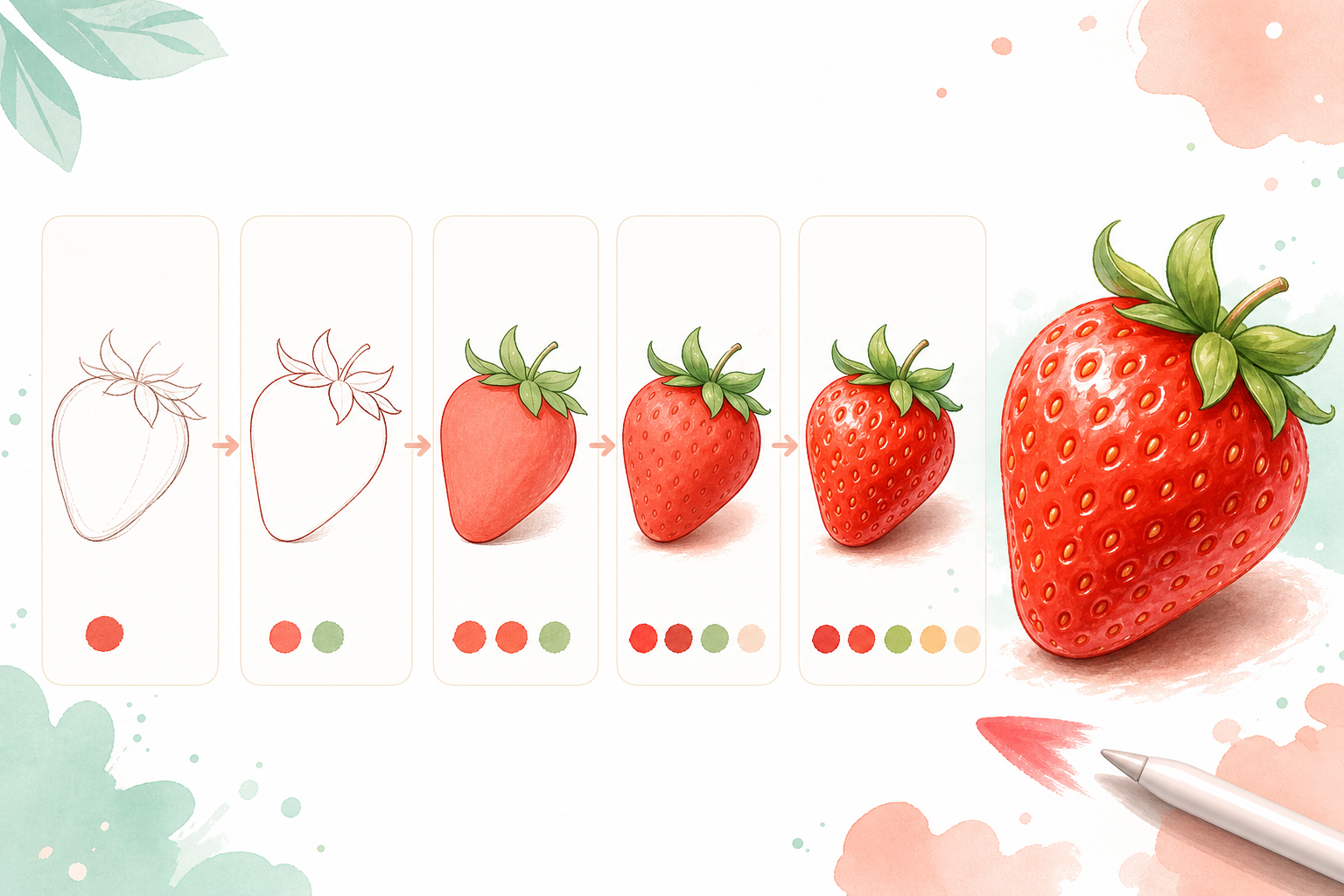
Step-by-step strawberry drawing tutorial in Procreate

If you are new to Procreate, the fastest way to improve is to draw small, clear subjects. These ideas are simple enough for beginners but still useful for practicing shape, color, and line control.

1. Cute Fruit

Try strawberries, lemons, peaches, cherries, or orange slices. Fruit teaches you color gradients, highlights, and soft shadows.

2. Simple Animals

Cats, rabbits, bears, and birds are good practice because they can be built from circles and ovals.

3. Leaves and Flowers

Botanical shapes are ideal for clean line art and brush control.

4. Desk Objects

Draw your Apple Pencil, notebook, keyboard, or iPad stand. These objects help you practice simple perspective.

5. Small Icons

Practice tiny icons like stars, hearts, clouds, pencils, and fruit slices. This improves consistency.

Posted on Leave a comment

Procreate Beginner Practice Plan: Week One

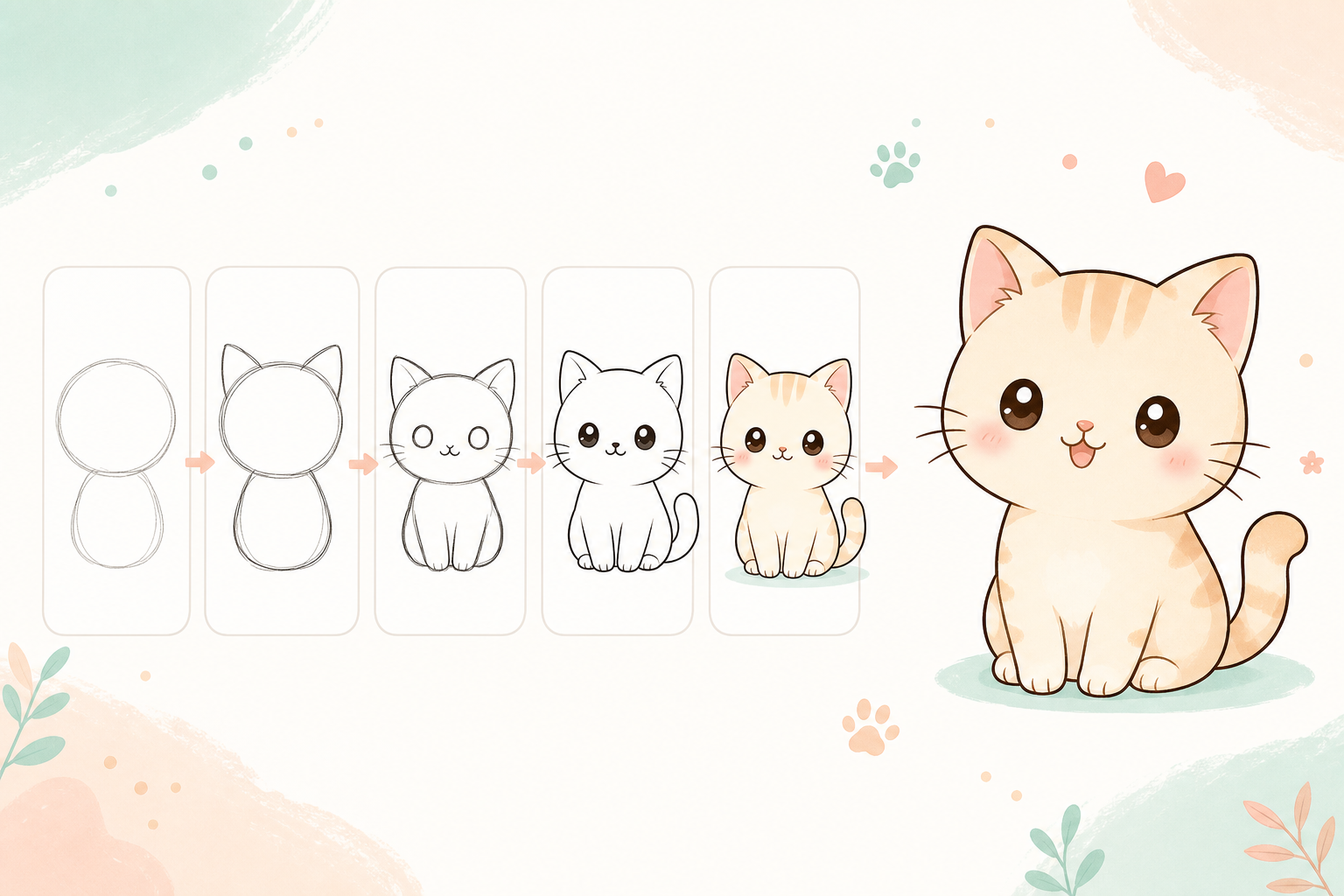
Step-by-step cute cat drawing tutorial in Procreate

This 7-day Procreate practice plan is designed for beginners. Each day has one small focus so you can build skill without feeling overwhelmed.

  • Day 1: Draw circles, ovals, and simple fruit shapes.
  • Day 2: Practice clean line art on one object.
  • Day 3: Color with flat base colors.
  • Day 4: Add soft shadows with a Multiply layer.
  • Day 5: Draw a cute animal using simple shapes.
  • Day 6: Paint fruit highlights and texture.
  • Day 7: Redraw your favorite subject and compare the result.

Keep each session short. Consistency matters more than one long practice day.

Posted on Leave a comment

Simple iPad Drawing Setup for Procreate Beginners

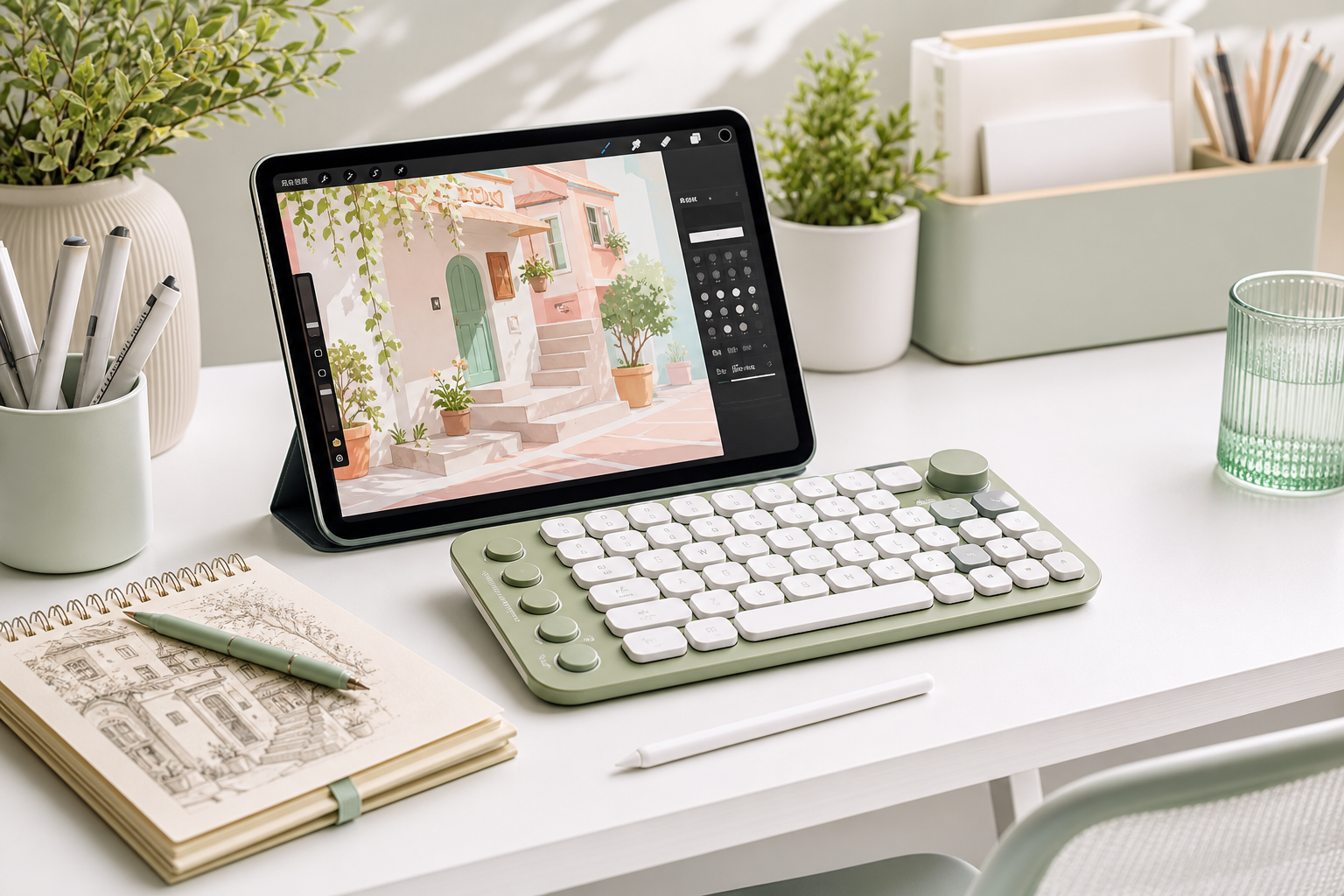
iPad Procreate drawing setup with shortcut keyboard and Apple Pencil

A good iPad drawing setup should reduce friction. You do not need a complicated desk. You need a comfortable angle, reliable tools, and fewer repeated taps.

1. Use a Comfortable iPad Angle

A stand helps keep your wrist relaxed and makes longer drawing sessions easier.

2. Keep Your Apple Pencil Ready

Keep extra tips or a charging stand nearby so drawing sessions do not stop unexpectedly.

3. Add Shortcuts When You Draw Often

A compact shortcut keyboard can speed up undo, redo, brush switching, and canvas control.

Posted on Leave a comment

Apple Pencil Tips for Sketching, Line Art, and Coloring

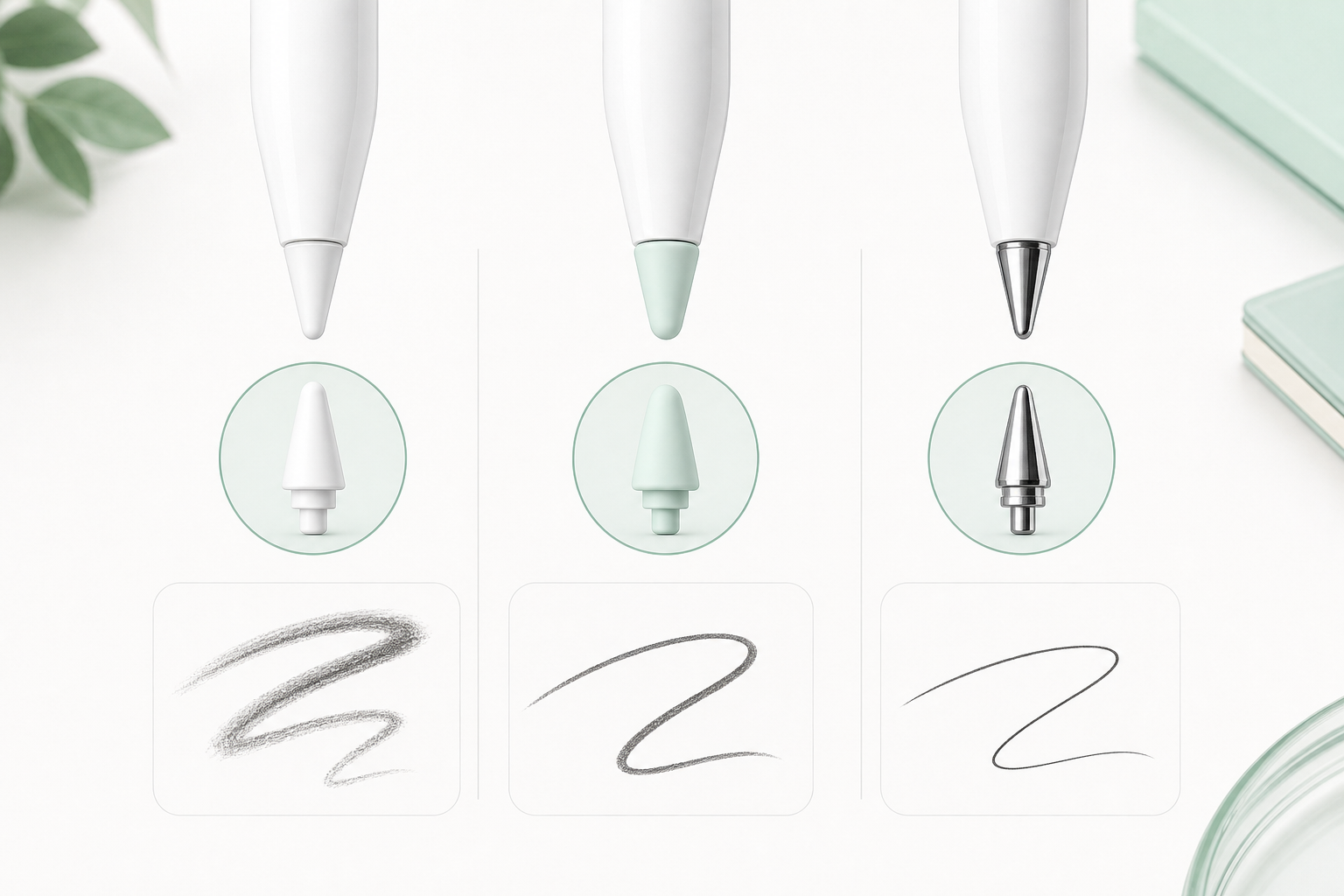
Comparison of Apple Pencil compatible tips for drawing and line control

Apple Pencil tips affect how your strokes feel on the iPad screen. The best option depends on your drawing style.

For Sketching

Choose a tip that gives you enough friction to control loose lines. A slightly softer feel can make sketching more comfortable.

For Clean Line Art

A more precise tip can help with controlled outlines, lettering, and detailed strokes.

For Coloring

Comfort matters more than sharp precision. Pick a tip that feels smooth during longer coloring sessions.

Posted on Leave a comment

How to Practice Clean Line Art for 10 Minutes a Day

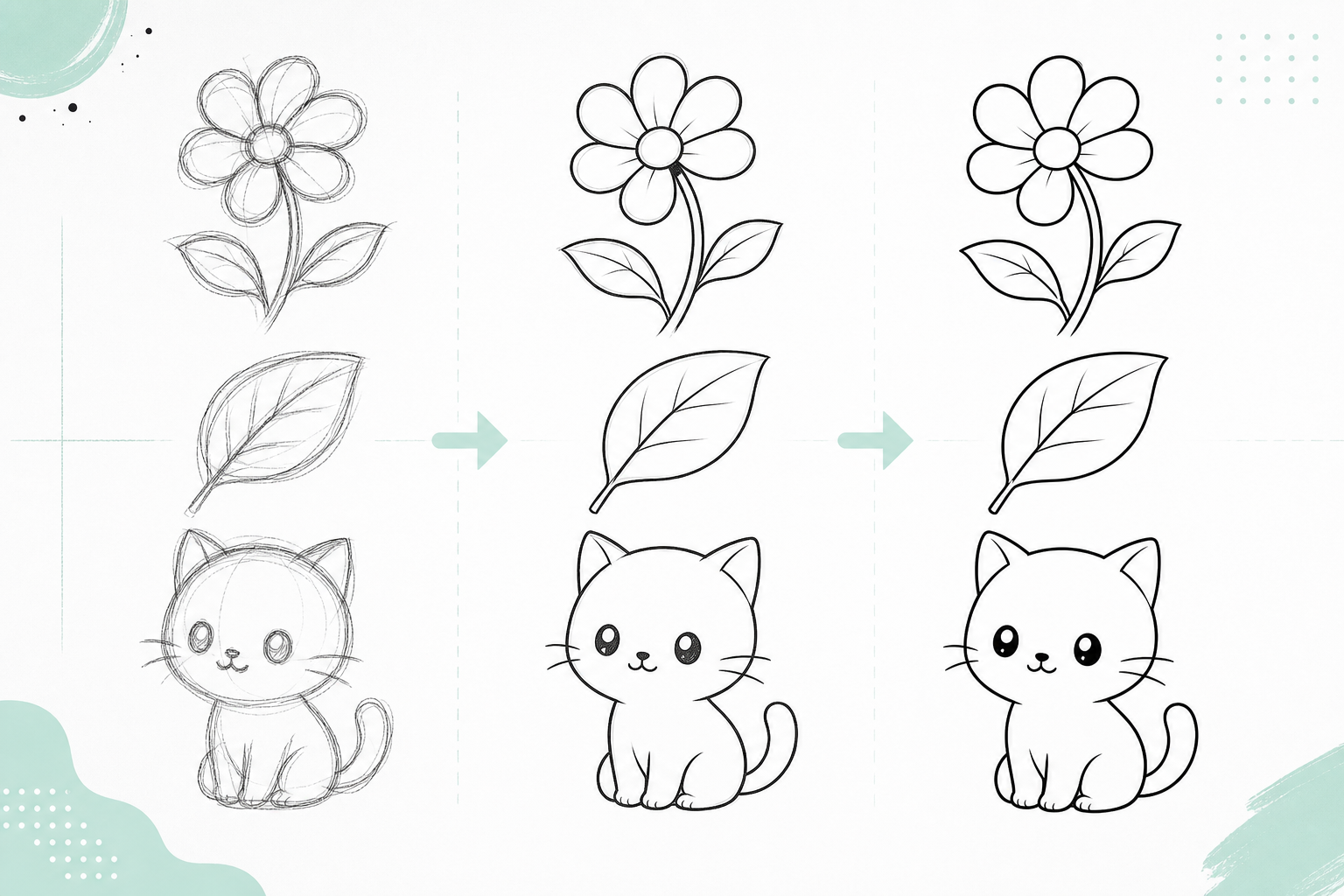
Procreate clean line art tutorial showing sketch to final line art

Clean line art improves faster when you practice a small routine every day. You do not need a long session. Ten focused minutes is enough.

Minute 1-2: Warm Up With Curves

Draw long C-curves, S-curves, and circles. Focus on smooth motion instead of perfect results.

Minute 3-5: Trace Simple Shapes

Sketch a leaf, flower, or fruit shape, lower the opacity, then trace it on a new layer.

Minute 6-8: Redraw Without Tracing

Hide the sketch and redraw the same object from memory. This builds confidence.

Minute 9-10: Clean the Edges

Erase overlaps, fix corners, and adjust line weight. Keep the routine simple and repeatable.