Posted on Leave a comment

The iPad Creator Setup Checklist

iPad creator setup checklist

iPad creator setup checklist

Use this checklist to build an iPad creator setup for drawing, studying, journaling, tutorials and everyday desk work.

A checklist prevents random accessory buying

It is easy to buy accessories because they look interesting. A checklist keeps the setup focused on what you actually do: draw, write, protect, watch, carry and create.

The checklist

  • Protection: Choose a case that fits your iPad model and carry style.
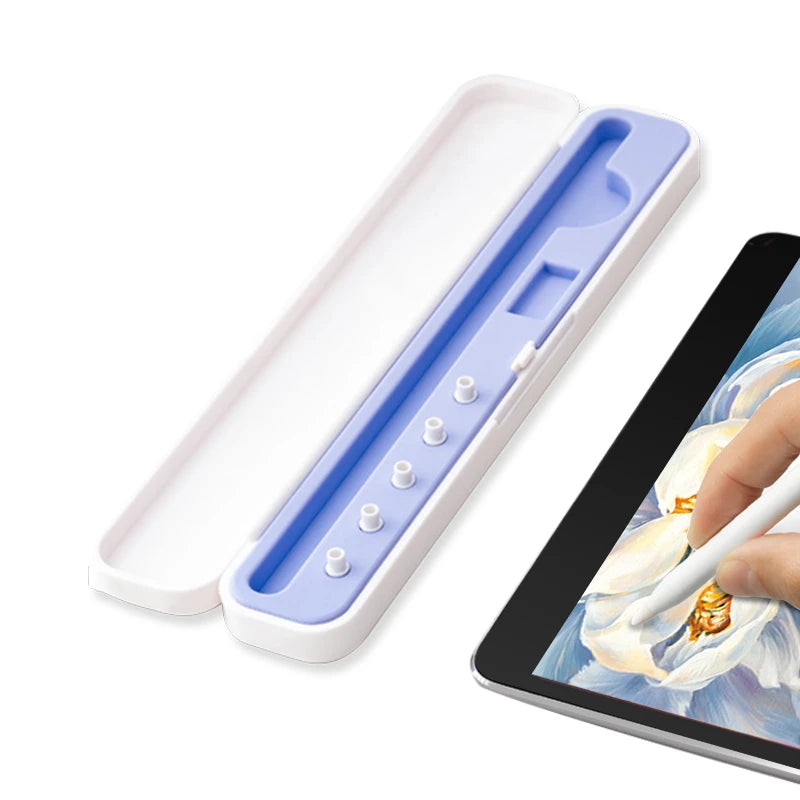
  • Pencil storage: Make sure the Apple Pencil has a safe place.
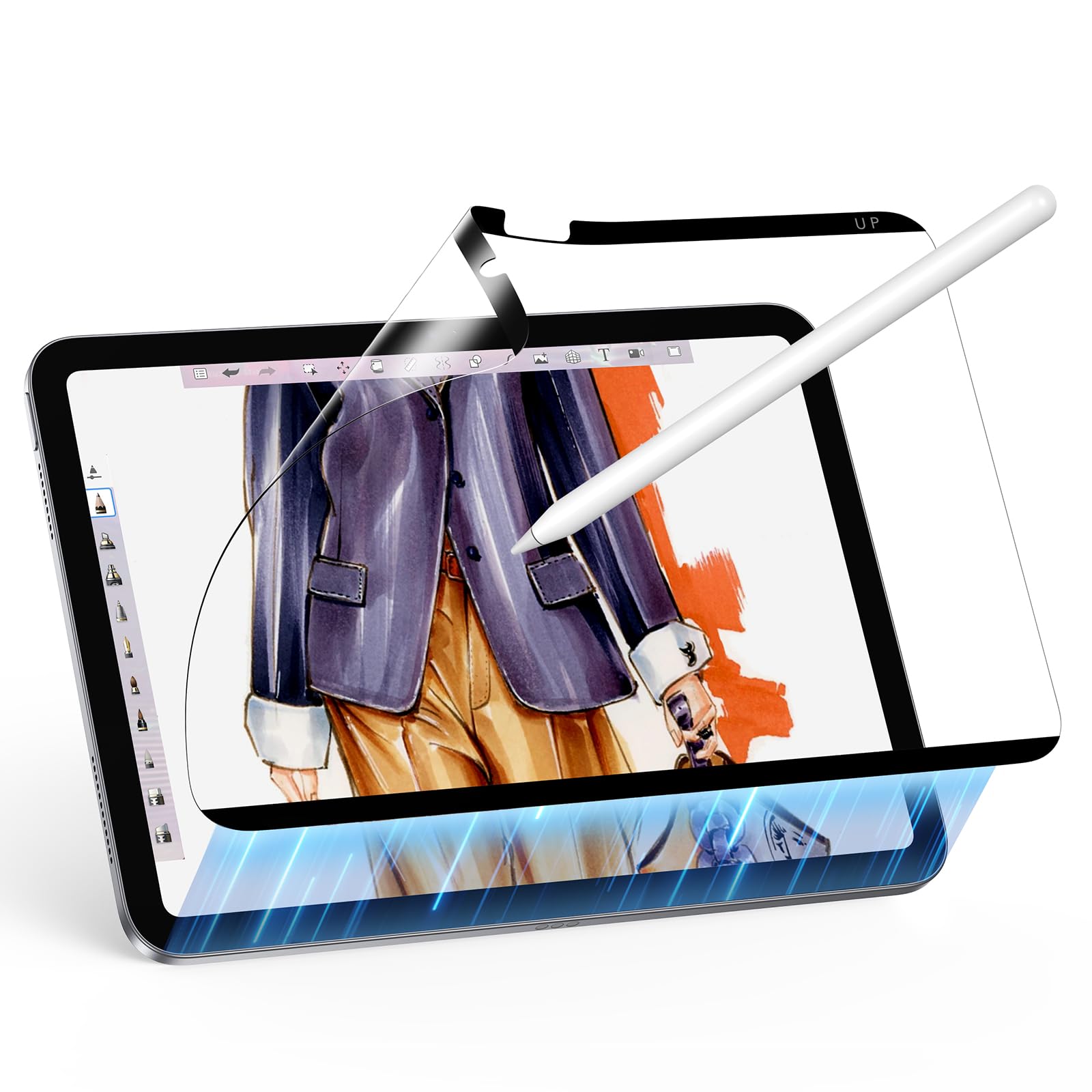
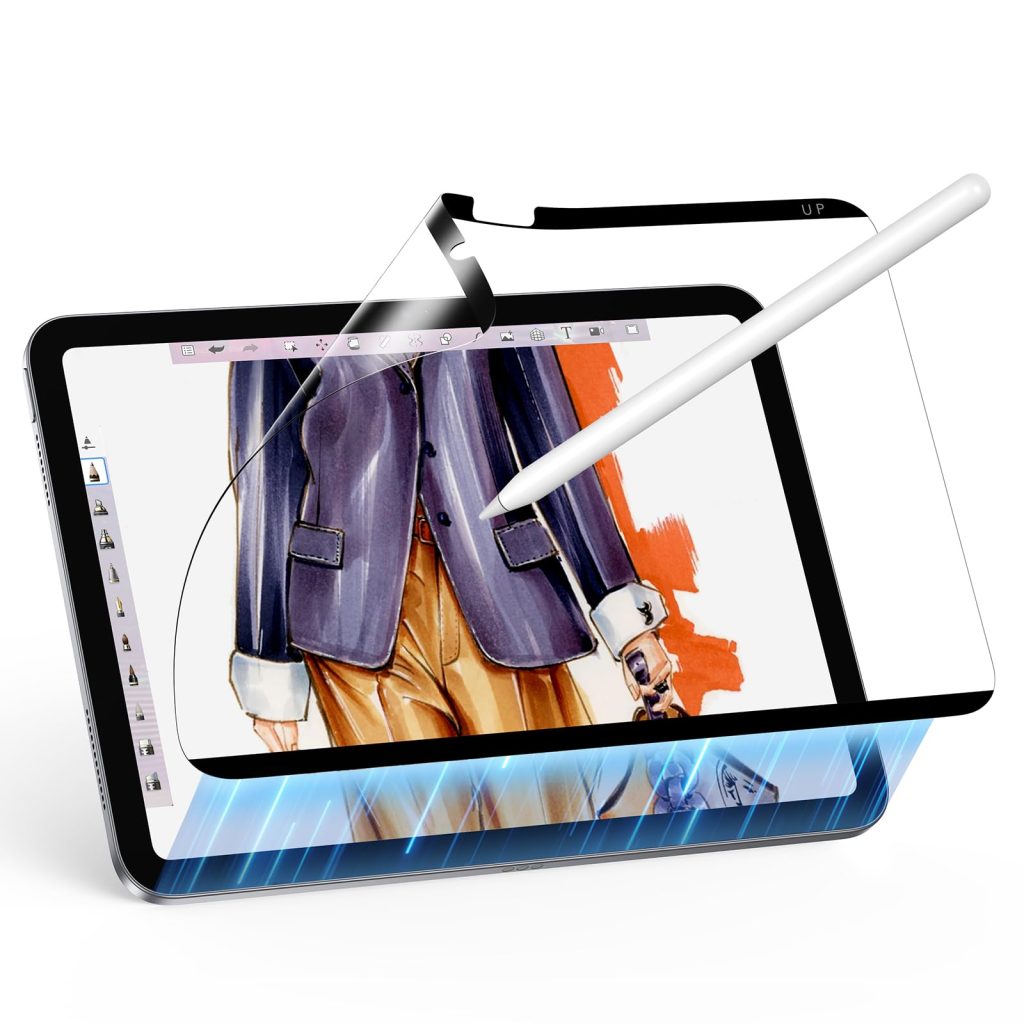
  • Drawing surface: Decide whether smooth glass or paper-feel texture suits you.
  • Screen angle: Use a stand or case that supports drawing and viewing.
  • Shortcut control: Add a keyboard if repeated Procreate actions slow you down.

Recommended AOIKTYE setup

AOIKTYE products are built around this creator setup idea.

Practical buying tips

  • Start with the accessory that solves your biggest daily annoyance.
  • Do not buy a case without confirming the iPad model.
  • Keep accessories visually simple if you create desk content.
  • Upgrade one part of the workflow at a time.

Quick FAQ

What is the first item on the checklist?

For most people, a protective case with Pencil storage is first.

What is the best upgrade for Procreate users?

A shortcut keyboard or stable stand can make the biggest workflow difference.

Final thoughts

A good creator setup is not about owning everything. It is about removing the small problems that stop you from starting and finishing creative work.
Posted on Leave a comment

How to Make Your iPad Feel More Like a Sketchbook

Make iPad feel more like a sketchbook

Make iPad feel more like a sketchbook

An iPad will never be exactly the same as paper, but the right accessories can make sketching feel more natural and less slippery.

The glass problem

Artists who come from pencils, markers or sketchbooks often notice that iPad glass feels too smooth. The hand moves fast, the Pencil slides and the screen angle may not feel familiar.

Ways to make iPad sketching feel more natural

  • Add texture: A paper-feel protector adds friction to the screen.
  • Use fresh tips: A worn Pencil tip can make strokes feel uneven.
  • Lower the angle: A low drawing angle can feel closer to a sketchbook posture.
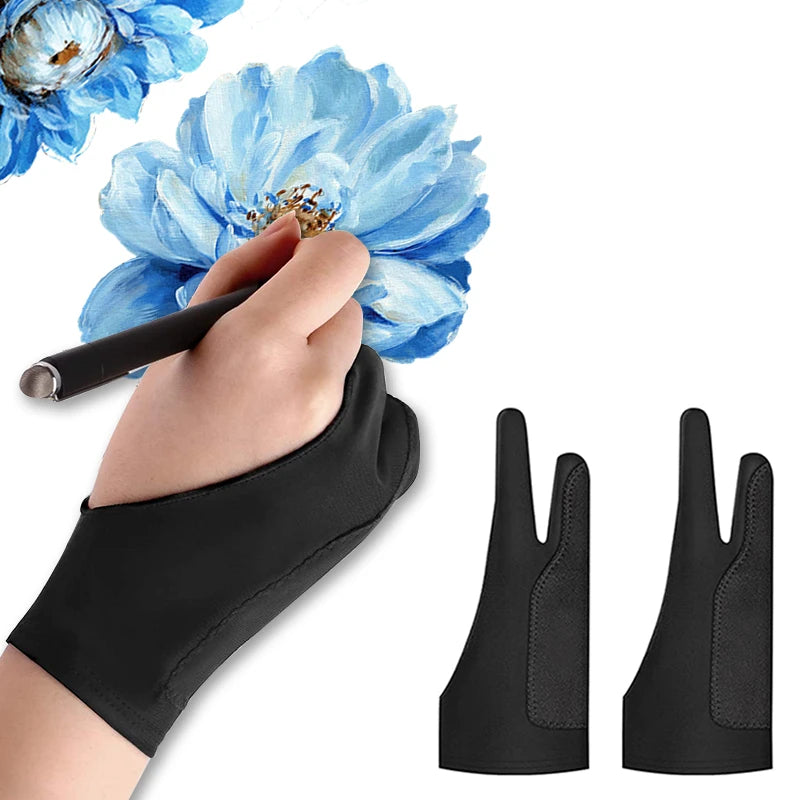
  • Reduce palm friction: An artist glove can help the hand move smoothly.

Recommended AOIKTYE setup

A sketchbook-style iPad setup focuses on feel before speed.

Practical buying tips

  • Try texture before changing too many tools at once.
  • Keep your screen clean so the Pencil moves predictably.
  • Use a case angle that feels close to your notebook posture.
  • Do warm-up sketches to adjust to the surface.

Quick FAQ

Will iPad ever feel exactly like paper?

No, but texture, angle and tip condition can make it feel much closer.

Is paper-feel better for every artist?

Not always. Some artists prefer smooth glass for color work and media viewing.

Final thoughts

The goal is not to copy paper perfectly. The goal is to make the iPad feel comfortable enough that sketching becomes natural.

Posted on Leave a comment

Desk Setup for Watching Art Tutorials on iPad

Desk setup for watching art tutorials on iPad

Desk setup for watching art tutorials on iPad

Watching art tutorials while drawing can be awkward if the iPad, phone and tools compete for space. A better setup separates your canvas from your reference screen.

Tutorials need a two-screen mindset

Many artists watch a lesson, reference image or speedpaint while drawing. If the tutorial covers the canvas or forces you to switch apps constantly, practice becomes slower.

A better tutorial desk layout

  • iPad as canvas: Keep the main iPad at a comfortable drawing angle.
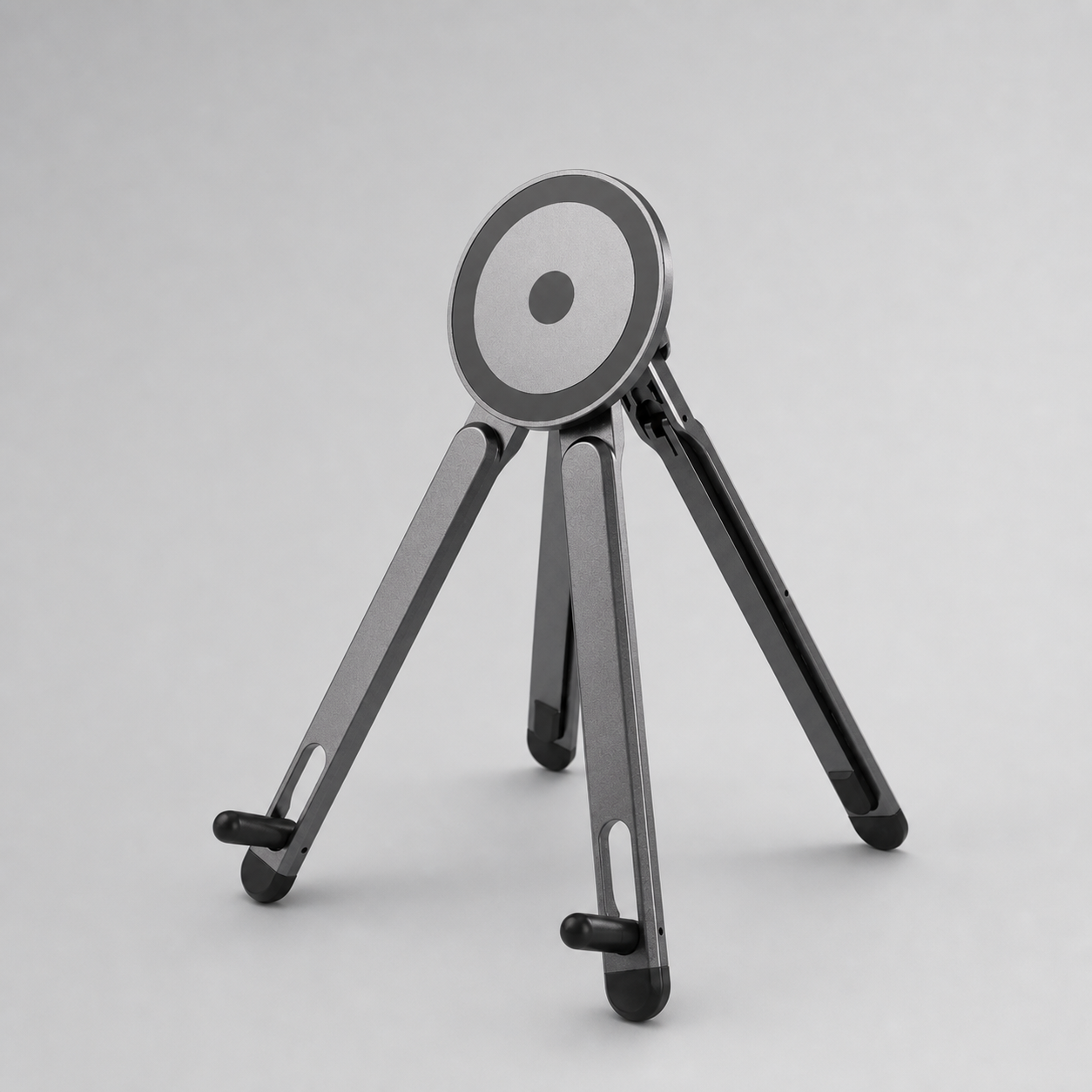
  • Phone as reference: Use a small stand for video, music or reference images.
  • Shortcut keyboard nearby: Keep controls close to avoid reaching across the screen.
  • Clean cable path: Avoid cable clutter near the drawing hand.

Recommended AOIKTYE setup

This setup is simple and works in small spaces.

Practical buying tips

  • Use the phone for the tutorial and the iPad for drawing when possible.
  • Keep the tutorial screen slightly higher than the drawing surface.
  • Pause and replay without moving your drawing hand too much.
  • Use a stand that does not wobble when touched.

Quick FAQ

Can I use one iPad for both tutorial and drawing?

Yes, but using a phone or second device for the tutorial often feels cleaner.

Is a stand necessary?

Not necessary, but it makes watching and drawing at the same time more comfortable.

Final thoughts

A tutorial-friendly desk setup helps you focus on practice instead of constantly switching windows.

Posted on Leave a comment

Magnetic iPad Case vs Folio Case: Which Is Better for Drawing?

Magnetic iPad case versus folio case for drawing

Magnetic iPad case versus folio case for drawing

Magnetic cases and folio cases can both protect an iPad, but artists should compare them by drawing angle, weight and Apple Pencil access.

Drawing changes what a case needs to do

A case for watching videos can be simple. A case for drawing needs to stay stable when the hand moves, support a useful angle and keep Pencil storage accessible.

How the two case styles compare

  • Magnetic case: Often cleaner, easier to detach and good for flexible desk setups.
  • Folio case: Often simple and protective, but can be bulkier for handheld sketching.
  • Drawing angle: The best option is the one that supports the angle you use most.
  • Pencil access: Artists should check whether the Pencil can charge or store correctly.

Recommended AOIKTYE setup

AOIKTYE focuses on cases that fit creator workflows rather than generic tablet protection.

Practical buying tips

  • Choose magnetic or detachable styles if you switch between desk and handheld use.
  • Choose stronger protective folios if your iPad travels in a rough bag.
  • Check whether the case blocks Pencil charging.
  • Look for product photos showing the exact drawing angle.

Quick FAQ

Are magnetic cases safe for iPad?

Use products designed for your iPad model and follow supplier guidance.

Which case is better for Procreate?

Most Procreate users benefit from a stable angle, Pencil storage and comfortable weight more than any single case style.

Final thoughts

There is no one best case type for every artist. The best choice is the one that supports your drawing angle and daily carry habits.

Posted on Leave a comment

iPad Accessories for Digital Journaling and Notes

Magnetic iPad case versus folio case for drawing

iPad accessories for digital journaling and notes

Digital journaling and note-taking need a slightly different iPad setup than illustration, but the best accessories still focus on comfort, storage and control.

Journaling setups need daily convenience

If your iPad is used for planners, study notes and journals, it needs to be quick to open, comfortable to write on and easy to carry. A missing Apple Pencil or slippery screen can make the habit harder to maintain.

Useful accessories for note-takers

  • Pencil holder case: Keeps the Apple Pencil attached to the routine.
  • Paper-feel surface: Makes writing feel more controlled.
  • Replacement tips: Important for heavy writing sessions.
  • Stand: Helpful for reading, planning and video calls.

Recommended AOIKTYE setup

A light daily kit works best for notes and journaling.

Practical buying tips

  • Choose a case that is easy to open quickly.
  • Use a textured surface if writing on glass feels slippery.
  • Keep extra tips near your desk or planner pouch.
  • Use a stand when reading PDFs or reviewing notes.

Quick FAQ

Do journal users need a shortcut keyboard?

Usually not at first. A keyboard becomes useful if they also draw or edit content.

What is the most important accessory for notes?

A case with Apple Pencil storage is often the most practical first choice.

Final thoughts

For journaling, the best setup is the one that removes friction from a daily habit.

Posted on Leave a comment

Procreate Workflow: Why Left-Hand Controls Matter

iPad creator setup checklist

Left hand controls for Procreate workflow

Many Procreate artists draw with one hand and control shortcuts with the other. This left-hand workflow can make drawing feel more like a desktop illustration setup.

The benefit of separating drawing and commands

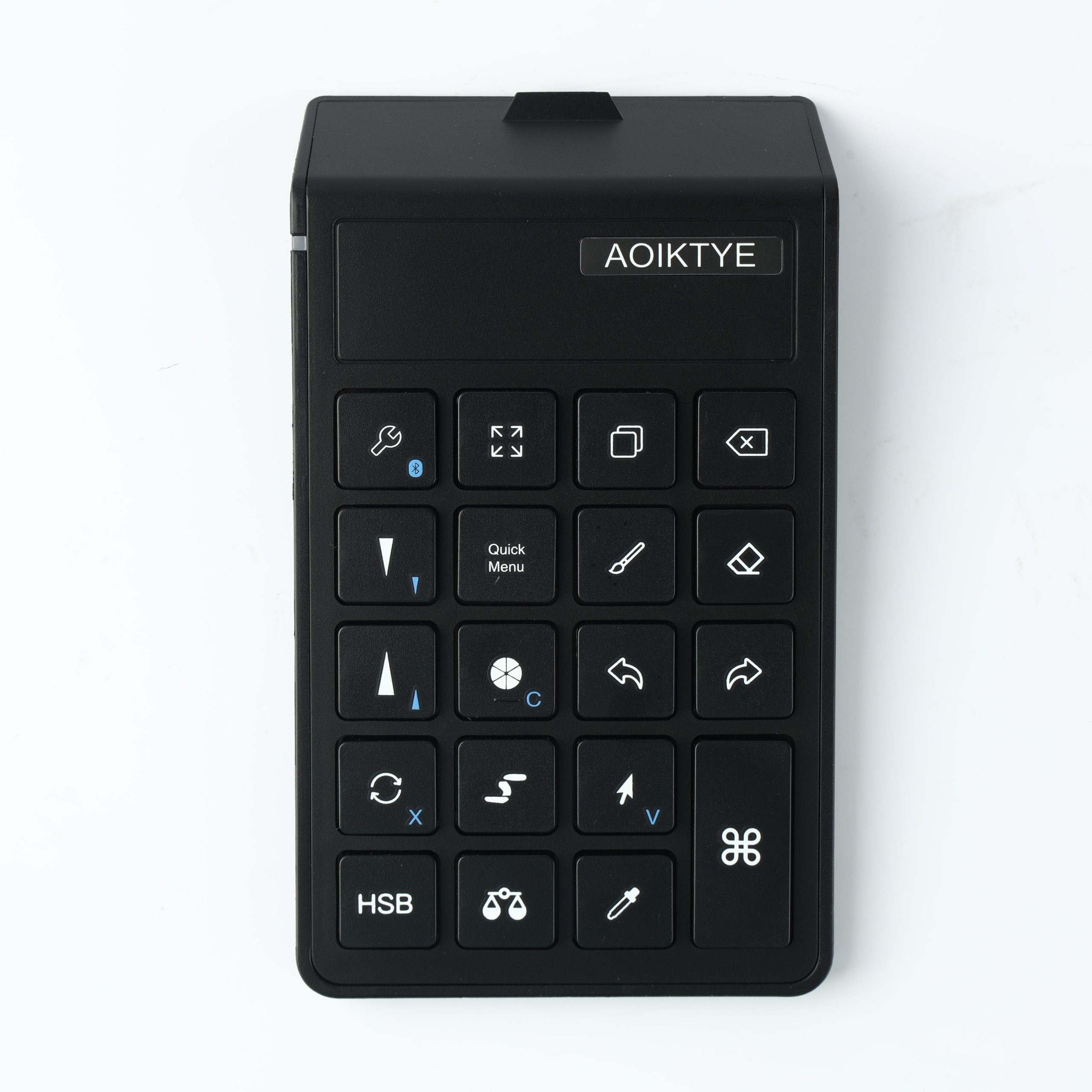
Your dominant hand is best used for strokes, shapes and details. Your other hand can handle undo, brush size, color sampling and view controls. This separation keeps the canvas feeling more direct.

What left-hand controls can improve

  • Drawing rhythm: You do not need to stop strokes to search for controls.
  • Speed: Repeated actions become faster after practice.
  • Focus: The drawing hand stays on the artwork.
  • Consistency: Physical keys can be easier to find than on-screen menus.

Recommended AOIKTYE setup

A compact shortcut keyboard is the center of this workflow.

Practical buying tips

  • Place controls on the opposite side of your drawing hand.
  • Keep the keyboard close enough to reach without stretching.
  • Map or learn shortcuts gradually.
  • Use the same desk layout each time to build muscle memory.

Quick FAQ

Can left-handed artists use this workflow?

Yes. The idea is to place controls under the non-drawing hand, whichever side that is.

Does it work only in Procreate?

Shortcut behavior depends on the app, but the idea of separating drawing and commands can help in many creative workflows.

Final thoughts

Left-hand controls are not about complexity. They are about letting each hand do the job it is best at.

Posted on Leave a comment

How to Reduce Hand Fatigue When Drawing on iPad

Artist glove for reducing hand fatigue on iPad

Artist glove for reducing hand fatigue on iPad

Hand fatigue can make iPad drawing less enjoyable. The fix is usually a combination of better angle, smoother hand movement and fewer repeated gestures.

Why iPad drawing can feel tiring

Drawing on glass is different from drawing on paper. Your hand may grip the Pencil too tightly, your wrist may bend at a bad angle and your drawing hand may constantly reach across the screen for commands.

Accessories that can help comfort

  • Artist glove: Reduces friction between your palm and the screen.
  • Stand or angled case: Helps keep the wrist and neck in a better position.
  • Shortcut keyboard: Moves repeated commands away from the drawing hand.
  • Paper-feel surface: Adds friction so the Pencil may feel easier to control.

Recommended AOIKTYE setup

A comfort-focused setup combines hand movement, angle and shortcut control.

Practical buying tips

  • Take short breaks during long sessions.
  • Relax your grip and let the stylus move naturally.
  • Adjust screen angle before starting a long piece.
  • Use shortcuts for actions you repeat often.

Quick FAQ

Will an artist glove fix palm rejection?

It can help reduce friction, but palm rejection also depends on the app and device behavior.

Can a shortcut keyboard reduce fatigue?

It can reduce repeated reaching and tapping with the drawing hand.

Final thoughts

Comfort is part of productivity. If your hands and posture feel better, long drawing sessions become easier to enjoy.

Posted on Leave a comment

Portable iPad Art Kit for Travel, Class and Cafes

Portable iPad art kit storage setup

Portable iPad art kit storage setup

A portable iPad art kit should be light, protective and ready to use in small spaces like classrooms, cafes and travel desks.

Portable setups need fewer but better pieces

When you draw away from home, every accessory needs to earn its place. A bulky setup can stop you from carrying it. A smart kit focuses on protection, Pencil storage and a few workflow helpers.

What belongs in a portable art kit

  • Protective case: Keeps the iPad safe inside a bag.
  • Pencil storage: Prevents the Apple Pencil from getting lost during travel.
  • Spare tips: Small, light and useful when a tip wears down.
  • Compact stand or shortcut tool: Adds comfort without taking much space.

Recommended AOIKTYE setup

AOIKTYE travel-friendly tools can help you keep the kit small.

Practical buying tips

  • Avoid carrying accessories you do not use every week.
  • Use one pouch for tips, cable and small parts.
  • Choose cases that close securely in a bag.
  • Keep the setup flat enough to fit with notebooks or a laptop.

Quick FAQ

Can a shortcut keyboard be portable?

Yes, if it is compact enough to sit beside the iPad in a small workspace.

What should I skip for travel?

Skip heavy stands or oversized desk accessories unless you know you will use them.

Final thoughts

A travel art kit should make drawing easier to start anywhere. Small, reliable tools matter more than a full studio setup.

Posted on Leave a comment

How to Choose an iPad Case with Apple Pencil Holder

Magnetic iPad case versus folio case for drawing

iPad case with Apple Pencil holder

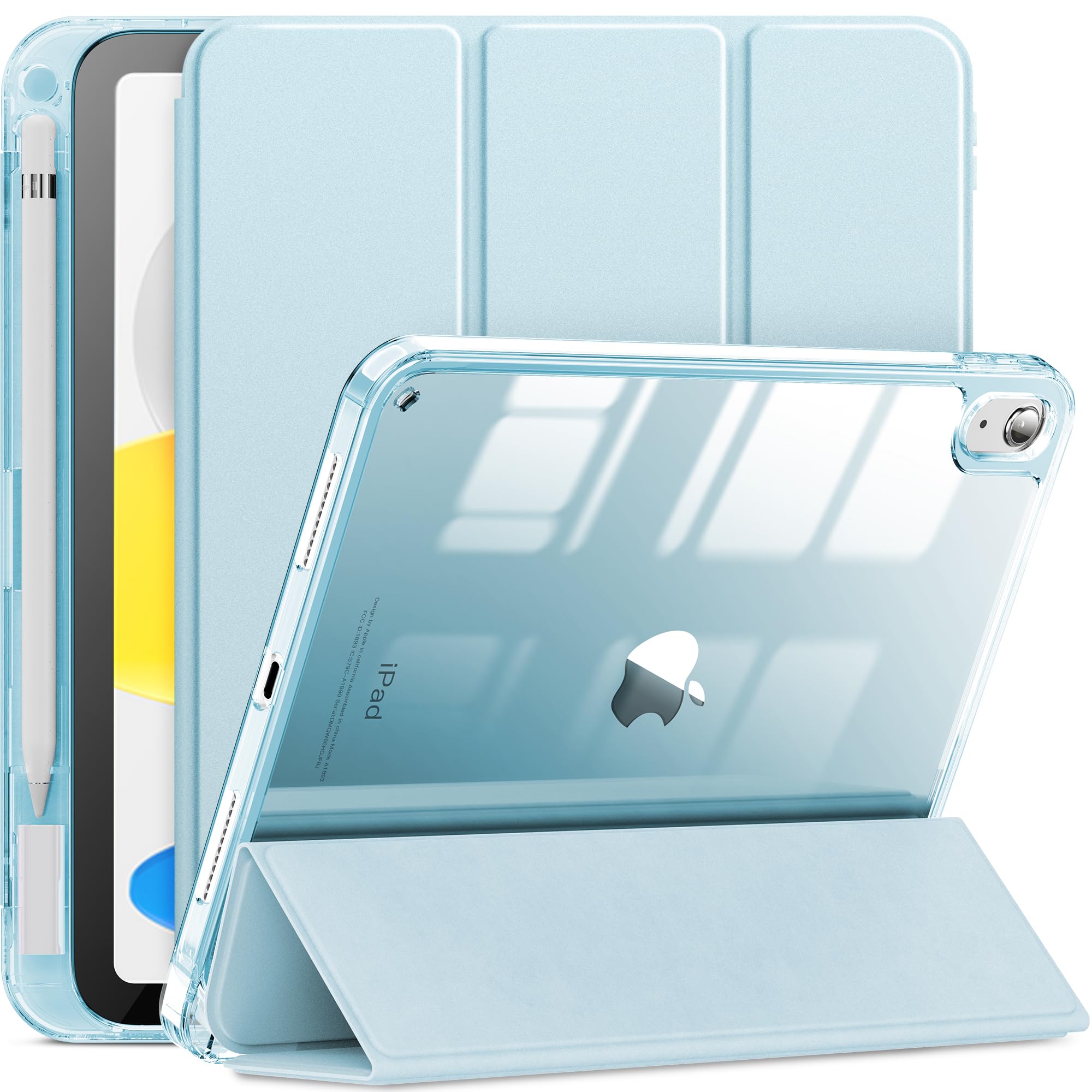
An iPad case with an Apple Pencil holder is one of the most useful accessories for artists, students and note-takers.

The Pencil holder is not just a small detail

Apple Pencil is easy to misplace, especially when moving between desk, classroom and bag. A built-in holder creates a simple storage habit and makes the iPad setup feel complete.

What to check before buying

  • Charging support: Some cases allow magnetic charging while others only provide storage.
  • Model fit: Camera cutouts, button positions and size must match your exact iPad.
  • Stand angle: A good case should support drawing and viewing positions.
  • Weight: A very heavy case can make handheld sketching uncomfortable.

Recommended AOIKTYE setup

Choose between a minimal clear case and a multi-angle drawing case based on how you use the iPad.

Practical buying tips

  • Check whether your Apple Pencil generation supports magnetic charging.
  • Look at the back of your iPad for the model number if you are unsure.
  • Choose detachable designs if you like a lighter handheld feel.
  • Use a screen protector if you carry the iPad daily.

Quick FAQ

Does every Pencil holder charge Apple Pencil?

No. Some holders are only storage slots, so check the product description.

Is a pencil holder case good for drawing?

Yes, if it also has a stable angle and does not make the iPad too heavy.

Final thoughts

A Pencil holder case is a simple upgrade that protects both the iPad and the tool artists use most.

Posted on Leave a comment

iPad Drawing Setup for Students: What to Buy First

Magnetic iPad case versus folio case for drawing

Student iPad drawing setup with case

Students need an iPad setup that works for drawing, notes, class, travel and small desks. The best first purchases are practical, portable and easy to use.

Student setups need to do more than one job

A student may use the same iPad for Procreate, lectures, PDFs, video calls and entertainment. That means accessories should protect the device and make the screen comfortable in different places.

Best first accessories for student artists

  • Case with Pencil holder: Protects the iPad and keeps Apple Pencil from getting lost.
  • Replacement tips: Useful for frequent note-taking and drawing.
  • Compact stand: Helps with online classes, references and study sessions.
  • Shortcut keyboard: A helpful upgrade once Procreate becomes part of daily work.

Recommended AOIKTYE setup

Start with essentials, then upgrade toward a more creative workflow.

Practical buying tips

  • Choose lightweight accessories for backpacks.
  • Check model compatibility carefully before buying a case.
  • Use a stand for video classes and tutorial watching.
  • Keep spare tips in your pencil case or pouch.

Quick FAQ

Should students buy a keyboard first?

Only if they already draw often or use shortcuts. A case and Pencil storage usually come first.

What setup is best for dorm rooms?

A compact stand, shortcut keyboard and clear case keep the desk flexible without taking much space.

Final thoughts

A student iPad drawing setup should be simple enough to carry and useful enough to use every day.