Posted on Leave a comment

Gift Ideas for Digital Artists Who Use iPad

iPad creator setup checklist

Gift ideas for digital artists using iPad

Buying a gift for an iPad artist is easier when you think about comfort, protection and workflow instead of only choosing something cute.

Good artist gifts solve daily problems

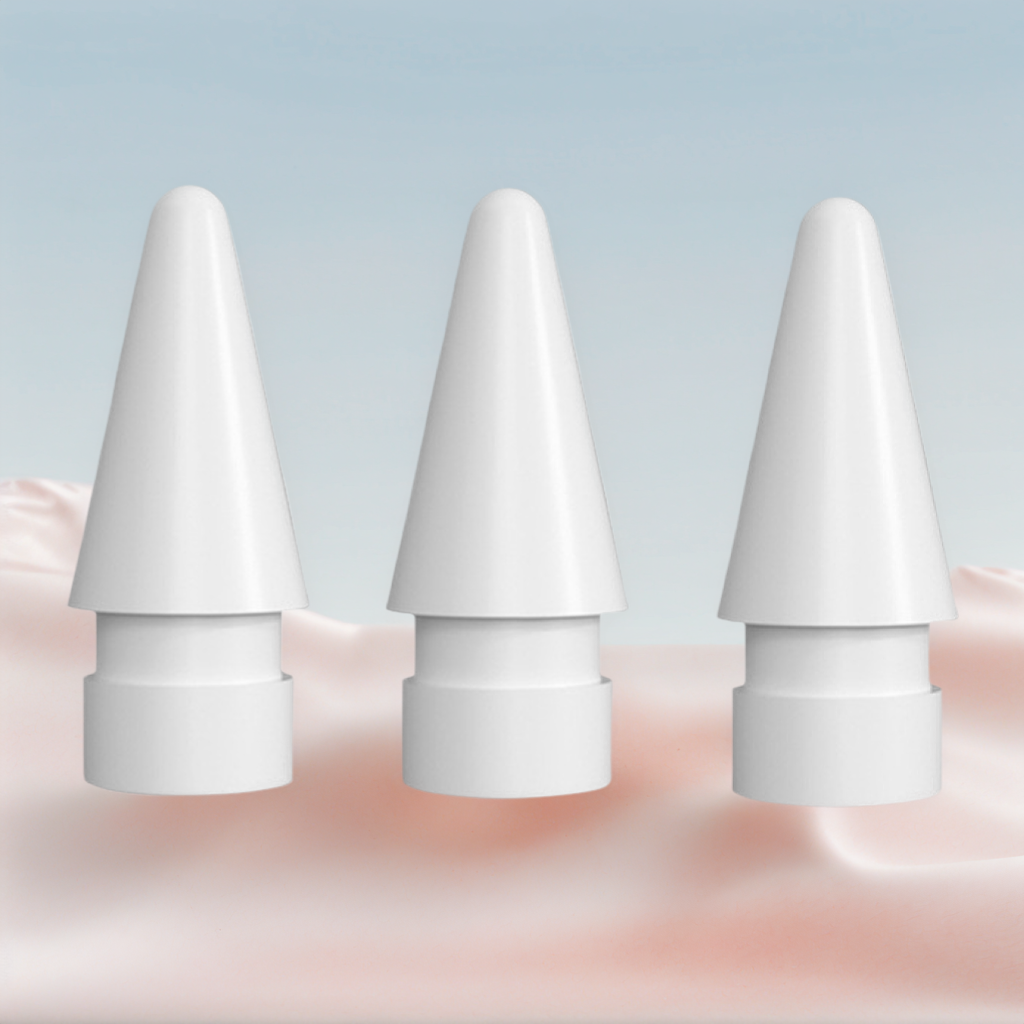
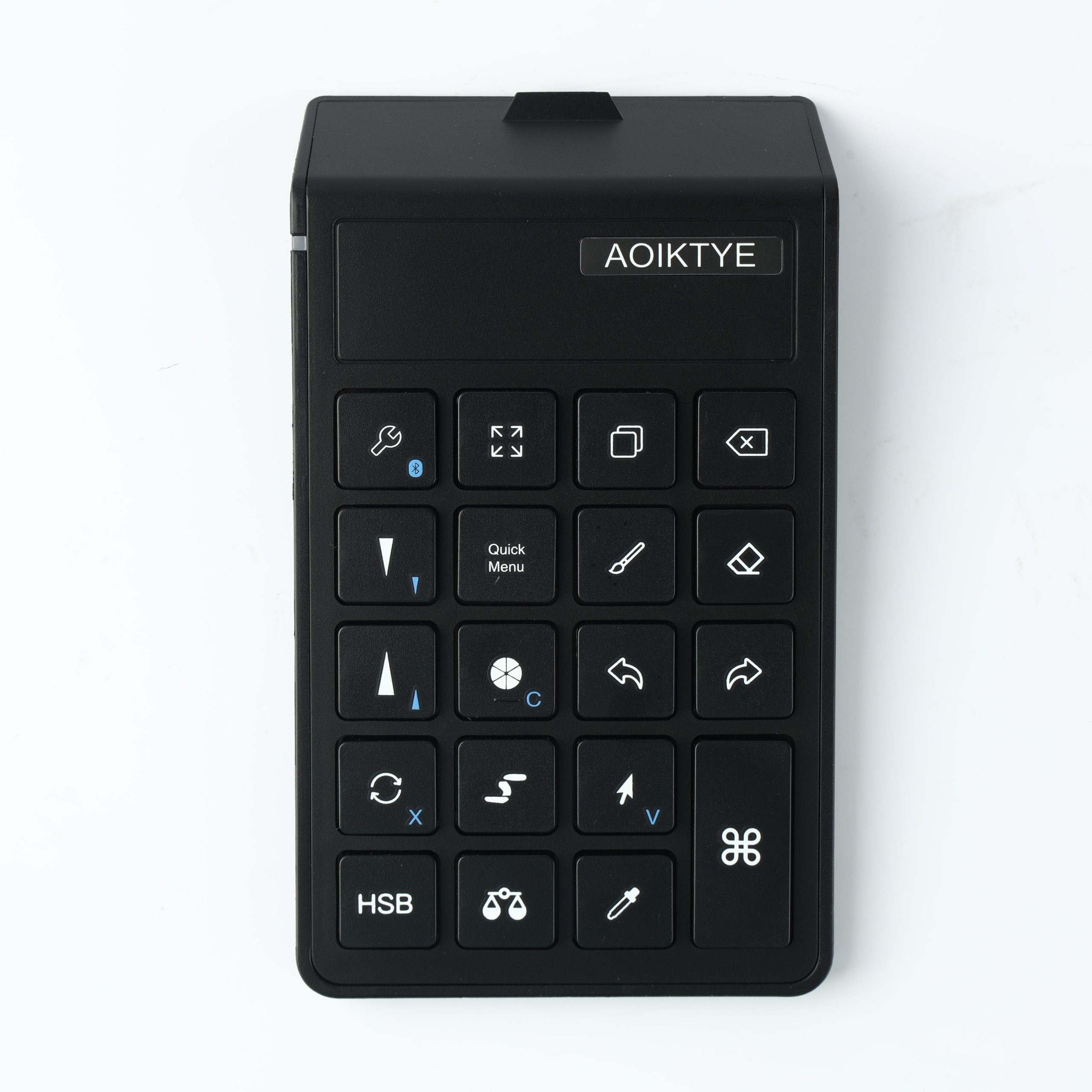
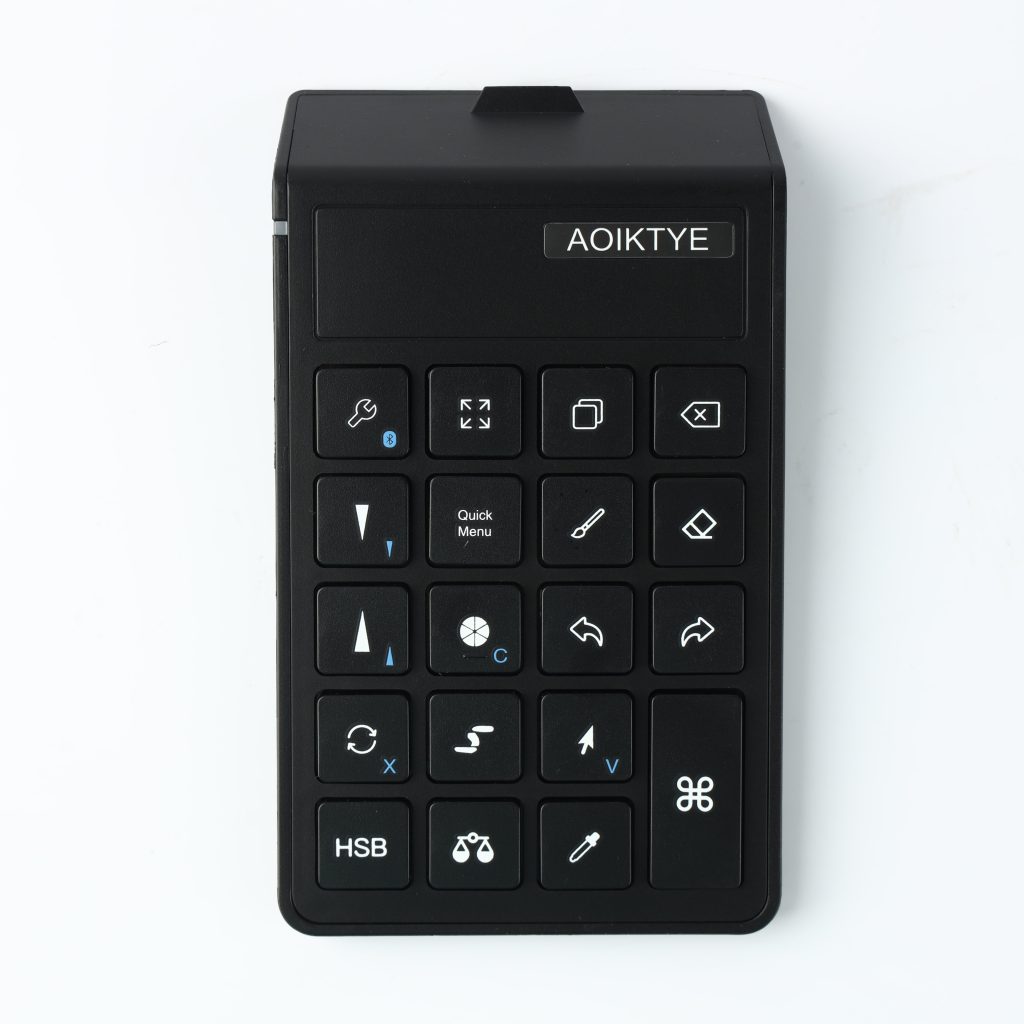
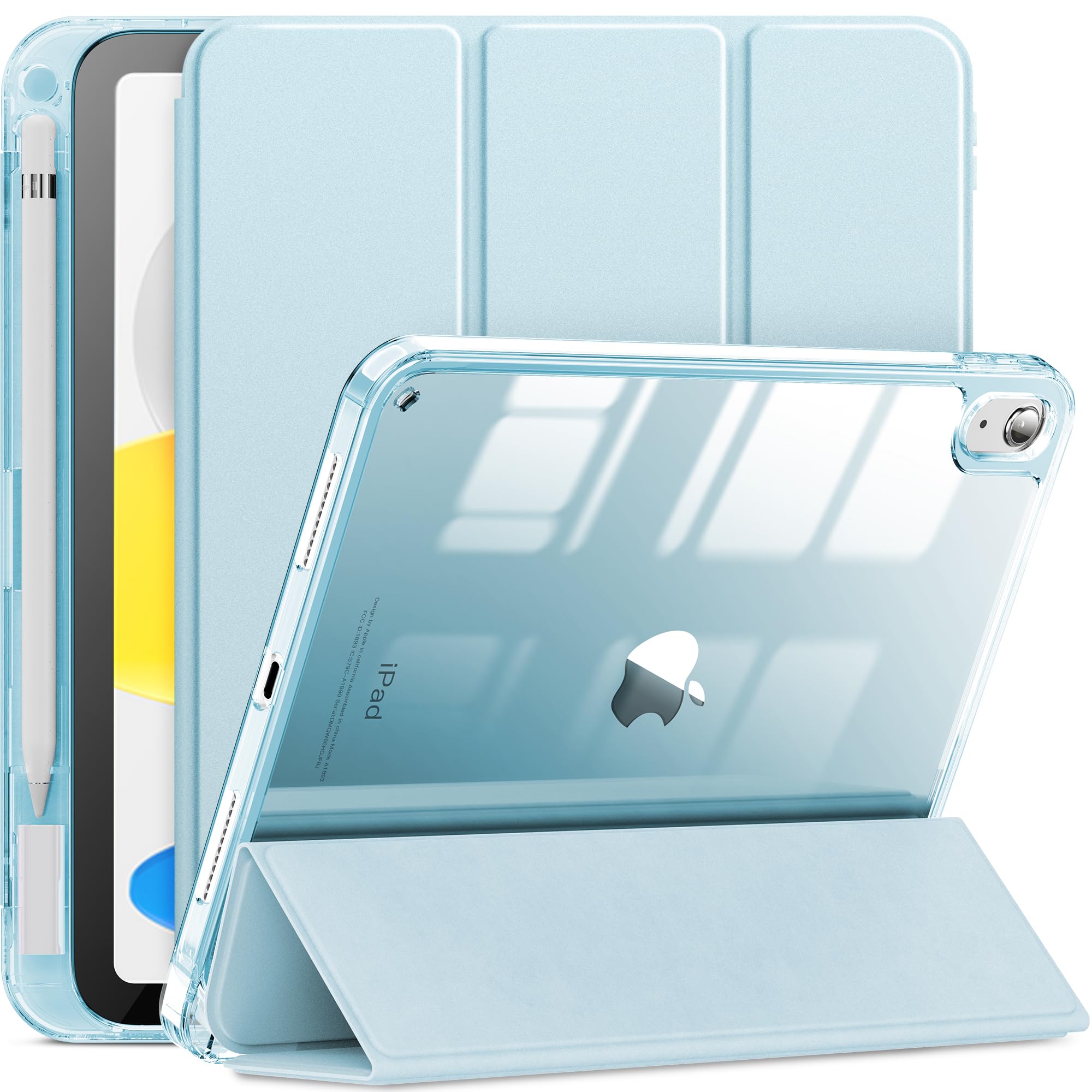
Digital artists already have the iPad and Apple Pencil. The best gifts are accessories that make those tools easier to use: a better case, spare tips, a stand, a shortcut keyboard or a cleaner travel kit.

Gift types that are useful for iPad creators

  • Shortcut tools: Helpful for artists who draw often in Procreate.
  • Protective cases: Good for students, travelers and daily carry.
  • Pencil accessories: Small, affordable and always useful.
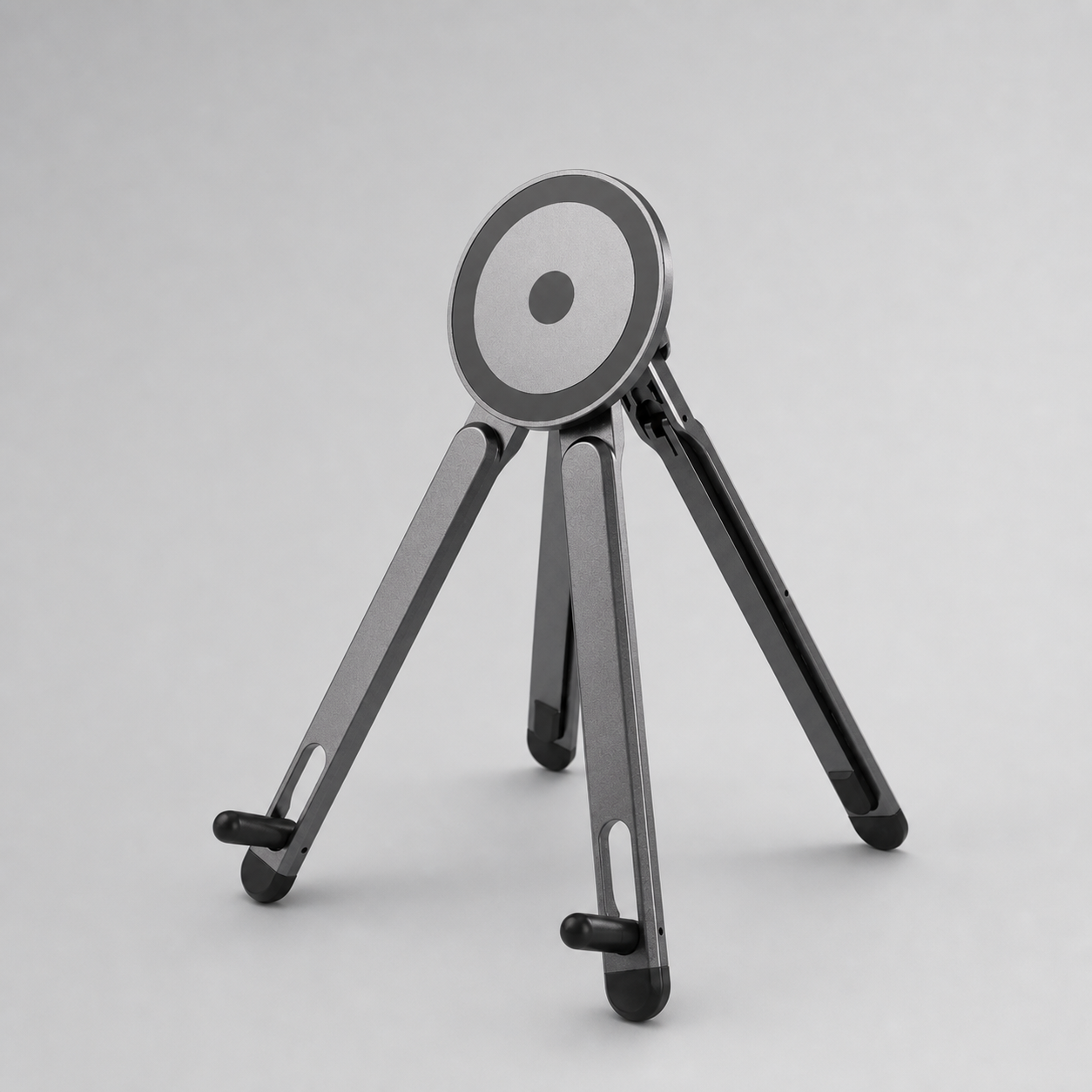
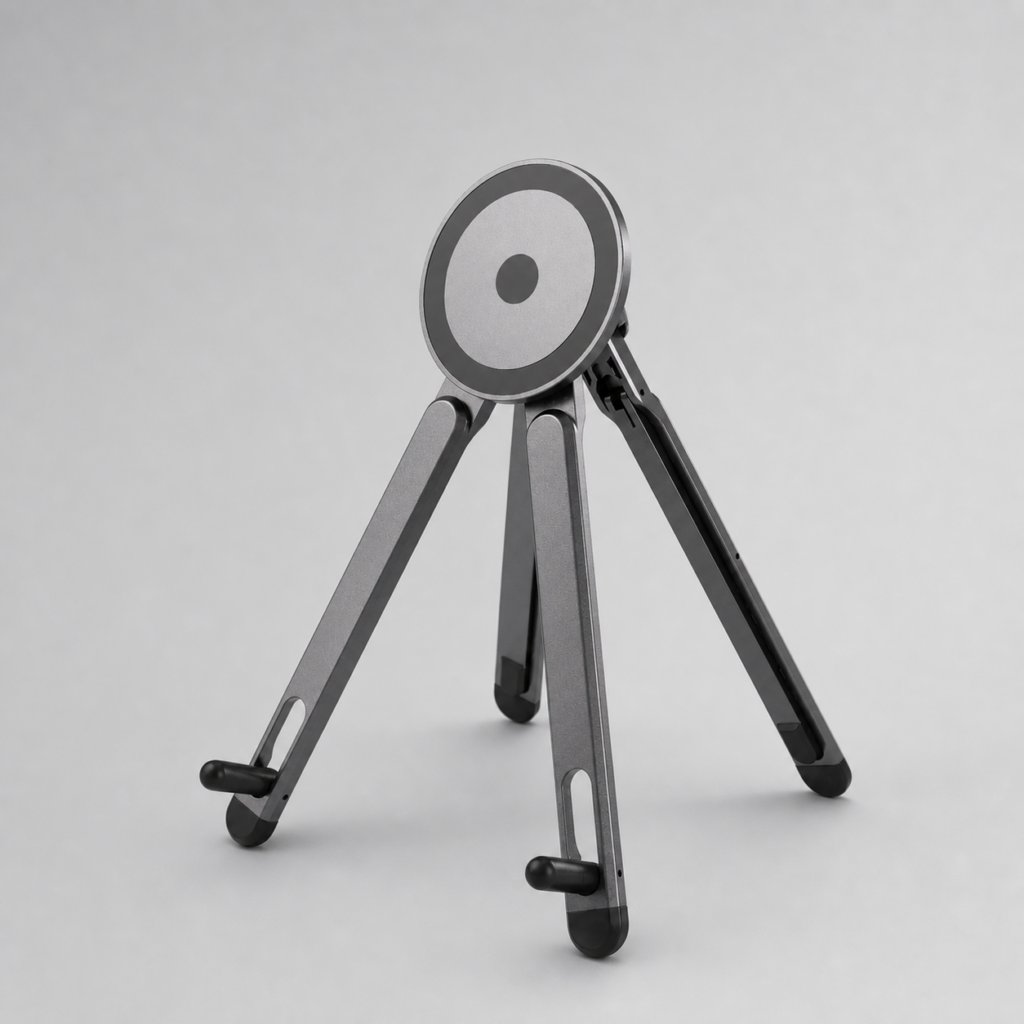
  • Stands: Great for tutorials, video calls and desk setup upgrades.

Recommended AOIKTYE setup

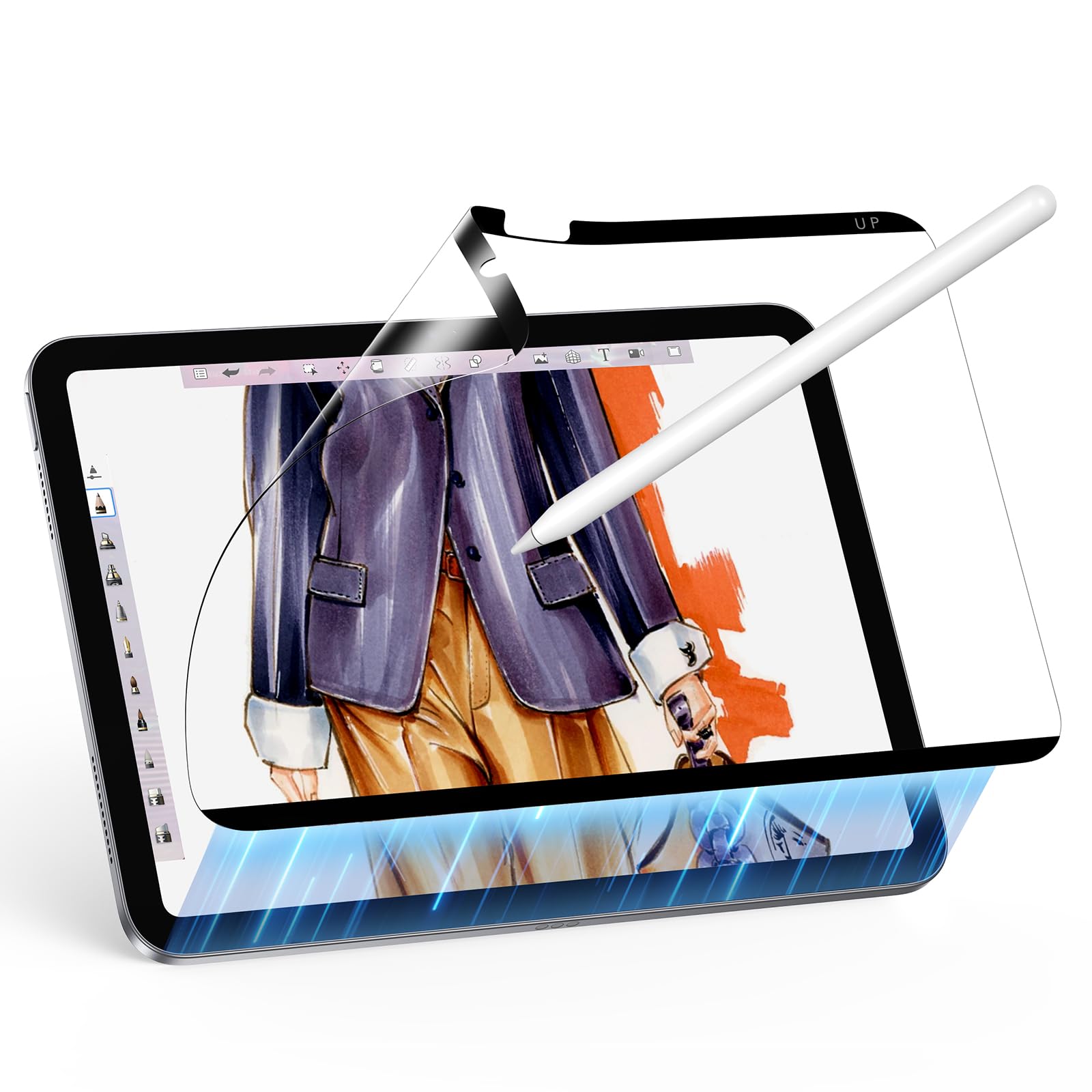
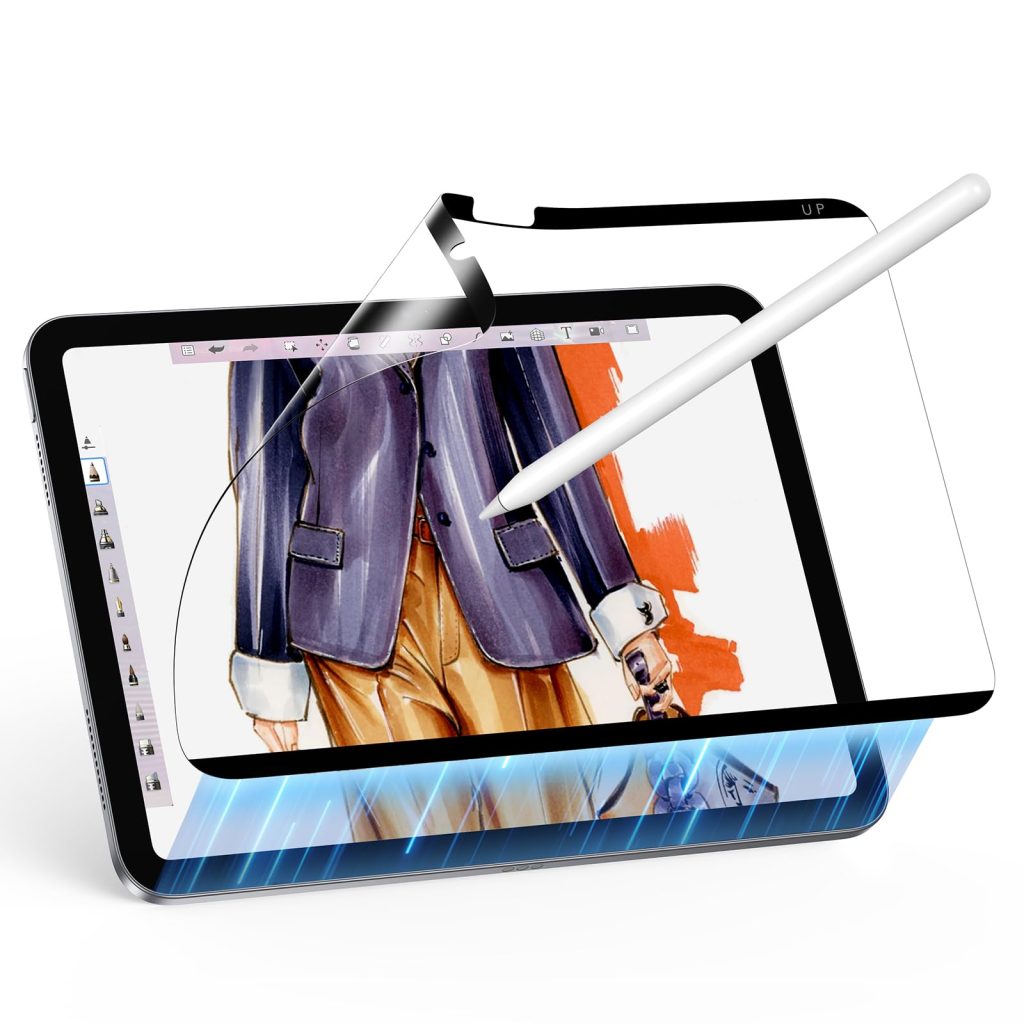
These AOIKTYE items work well as practical gifts because they fit common drawing habits.

Practical buying tips

  • Ask for the exact iPad model before buying a case.
  • Choose small accessories if you are unsure about style.
  • For serious artists, prioritize workflow tools over decorative items.
  • For students, look for protection and Pencil storage.

Quick FAQ

What is a safe gift for an iPad artist?

Replacement Pencil tips, a stand or an artist glove are safer because they do not depend as heavily on iPad model fit.

Is a shortcut keyboard a good gift?

Yes, especially for Procreate users who draw regularly and want faster controls.

Final thoughts

A thoughtful iPad artist gift helps the person create more comfortably. Practical tools often become the gifts artists keep using every week.
Posted on Leave a comment

Procreate Keyboard Shortcuts: A Beginner-Friendly Setup

iPad creator setup checklist

Procreate keyboard shortcuts setup

Keyboard shortcuts can make Procreate feel faster, especially when you only learn the commands you use every day.

Start small instead of memorizing everything

Procreate supports keyboard shortcuts with compatible connected keyboards. Beginners do not need to memorize every command. The best approach is to start with repeated actions that interrupt drawing flow.

Beginner shortcut categories to learn first

  • Undo and redo: These are the most common correction actions.
  • Brush controls: Changing brush size and opacity quickly keeps sketching fluid.
  • Color picker: Fast color sampling is useful for painting and shading.
  • Layer and canvas controls: Switching views and panels can save time in longer projects.

Recommended AOIKTYE setup

A dedicated shortcut keyboard makes these commands easier to reach with the non-dominant hand.

Practical buying tips

  • Learn five shortcuts first, then add more later.
  • Place your keyboard where your left hand rests naturally if you draw right-handed.
  • Label keys until the layout becomes familiar.
  • Use a stable iPad angle so your hands stay in the same position.

Quick FAQ

Can any keyboard work with Procreate?

Procreate says compatible connected keyboards can access keyboard shortcuts. A compact shortcut layout can be easier for drawing desks.

Do shortcuts replace gestures?

No. Many artists use both gestures and physical shortcuts depending on the action.

Final thoughts

A beginner-friendly shortcut setup is about reducing repeated movements. Once the basic keys become muscle memory, Procreate can feel much more direct.

Posted on Leave a comment

Cute iPad Setup Ideas for Digital Artists

Magnetic iPad case versus folio case for drawing

Cute iPad setup case for digital artists

A cute iPad setup can still be practical. The best setups combine visual style with tools that make drawing, studying and planning easier.

Why visual setup matters

Artists often share their desks on TikTok, Pinterest and Instagram. A clean, cute setup can inspire more practice and make content creation easier, but the accessories still need to solve real workflow problems.

Ideas that look good and work well

  • Clear case with stickers: Transparent cases let you personalize the iPad while keeping protection.
  • Soft color palette: Choose two or three colors across case, keyboard and desk accessories.
  • Visible Pencil storage: A pencil holder looks tidy and prevents lost tools.
  • Stand and shortcut keyboard: These add function while making the setup look intentional.

Recommended AOIKTYE setup

For a cute but useful setup, combine one visual piece with two workflow pieces.

Practical buying tips

  • Keep the background simple if you take photos of your desk.
  • Use one main accessory color instead of mixing too many colors.
  • Make the Pencil and charger easy to find.
  • Choose items that fit how you actually draw.

Quick FAQ

Are cute iPad cases practical?

They can be, if they also include protection, model fit and Apple Pencil storage.

What makes a setup good for Pinterest?

Clean lighting, a visible iPad, a simple desk surface and useful accessories people can imagine using.

Final thoughts

A cute iPad setup should make you want to create, but it should also make creating easier. Style works best when it supports the workflow.

Posted on Leave a comment

Best iPad Stand Angle for Drawing, Studying and Tutorials

Desk setup for watching art tutorials on iPad

iPad stand angle for drawing and tutorials

The right iPad stand angle depends on what you are doing: sketching, coloring, typing, watching tutorials or using a second screen.

Why angle changes comfort

A flat iPad can make your neck and wrist work harder. A raised screen can be better for watching tutorials, but too steep for drawing. The best setup lets you change angles without rebuilding your desk.

Useful angles for common iPad tasks

  • Low angle: Good for sketching and handwriting because the wrist stays close to the surface.
  • Medium angle: Useful for coloring, photo editing and reference viewing.
  • High angle: Better for video calls, watching tutorials and using the iPad as a second screen.
  • Phone side angle: A phone stand beside the iPad can hold references or music controls.

Recommended AOIKTYE setup

A stand and a multi-angle case work together if you move between desk and travel setups.

Practical buying tips

  • Avoid angles that force your wrist to bend sharply.
  • Use a lower angle for long drawing sessions.
  • Use a higher angle when watching tutorials or joining calls.
  • If the stand moves when you draw, switch to a more stable base or case.

Quick FAQ

Can I draw on a vertical stand?

Most artists prefer a lower angle for drawing because it gives the hand more control.

Is a phone stand useful for artists?

Yes. It can hold references, tutorial videos, chat or music controls without covering the iPad canvas.

Final thoughts

A good stand gives your iPad more than one job. It can become a sketch surface, tutorial screen, reference display and work monitor throughout the day.

Posted on Leave a comment

Paper-Feel Screen Protectors for iPad Drawing: Are They Worth It?

Make iPad feel more like a sketchbook

Paper-feel screen protector for iPad drawing

A paper-feel screen protector changes the way Apple Pencil moves across glass. For many artists, that texture makes the iPad feel closer to a sketchbook.

Why artists dislike drawing on bare glass

Bare iPad glass is smooth, which can make strokes feel slippery. A textured screen protector adds friction, helping some artists slow down their hand and control line weight more naturally.

What a paper-feel surface can improve

  • Line control: More friction can make small strokes easier to control.
  • Writing feel: Note-taking can feel less slippery.
  • Glare reduction: Some protectors reduce reflections during desk work.
  • Confidence: Beginners may feel more comfortable sketching on a textured surface.

Recommended AOIKTYE setup

A paper-feel protector pairs naturally with Pencil tips and a stable drawing angle.

Practical buying tips

  • Expect Pencil tips to wear a little faster on textured surfaces.
  • Clean dust before applying any protector.
  • Choose magnetic removable styles if you switch between drawing and media viewing.
  • Pair the protector with a good case so the screen stays protected in a bag.

Quick FAQ

Will a paper-feel protector make the screen less sharp?

Some textured protectors can slightly soften the look of the screen. Many artists accept this trade-off for better drawing control.

Is it necessary for Procreate?

No, but it can make drawing feel more natural for people who dislike glass.

Final thoughts

Paper-feel protectors are not magic, but they solve a real comfort problem. If bare glass feels too slippery, texture may be the missing part of your iPad setup.

Posted on Leave a comment

Apple Pencil Tips: When Should You Replace Them?

Apple Pencil replacement tips for drawing

Apple Pencil replacement tips for drawing

Apple Pencil tips are small, but they affect how your lines feel. If your strokes feel slippery, scratchy or inconsistent, the tip may be part of the problem.

Why Apple Pencil tips wear down

Every drawing session creates friction between the Pencil tip and the screen. Paper-feel screen protectors add more texture, which many artists like, but that surface can also wear tips faster than smooth glass.

Signs it may be time for new tips

  • Uneven contact: Lines feel inconsistent even when pressure is steady.
  • Visible flattening: The tip no longer looks rounded.
  • Scratchy movement: The Pencil feels rough or noisy on the screen.
  • Reduced control: Small details become harder to draw accurately.

Recommended AOIKTYE setup

Replacement tips work best as part of a complete drawing comfort setup.

Practical buying tips

  • Keep spare tips in your desk or travel pouch.
  • Replace tips before the inner hard material touches the screen.
  • If you use a textured protector, check tip wear more often.
  • Try different tip materials only after confirming they are safe for your screen setup.

Quick FAQ

Do paper-feel protectors wear Pencil tips faster?

They can, because the textured surface creates more friction than smooth glass.

Can beginners use replacement tips?

Yes. Keeping spare tips is a simple habit for anyone who draws or writes often.

Final thoughts

Fresh Pencil tips help your strokes feel predictable. For artists, that small detail can make sketching and coloring feel much more controlled.

Posted on Leave a comment

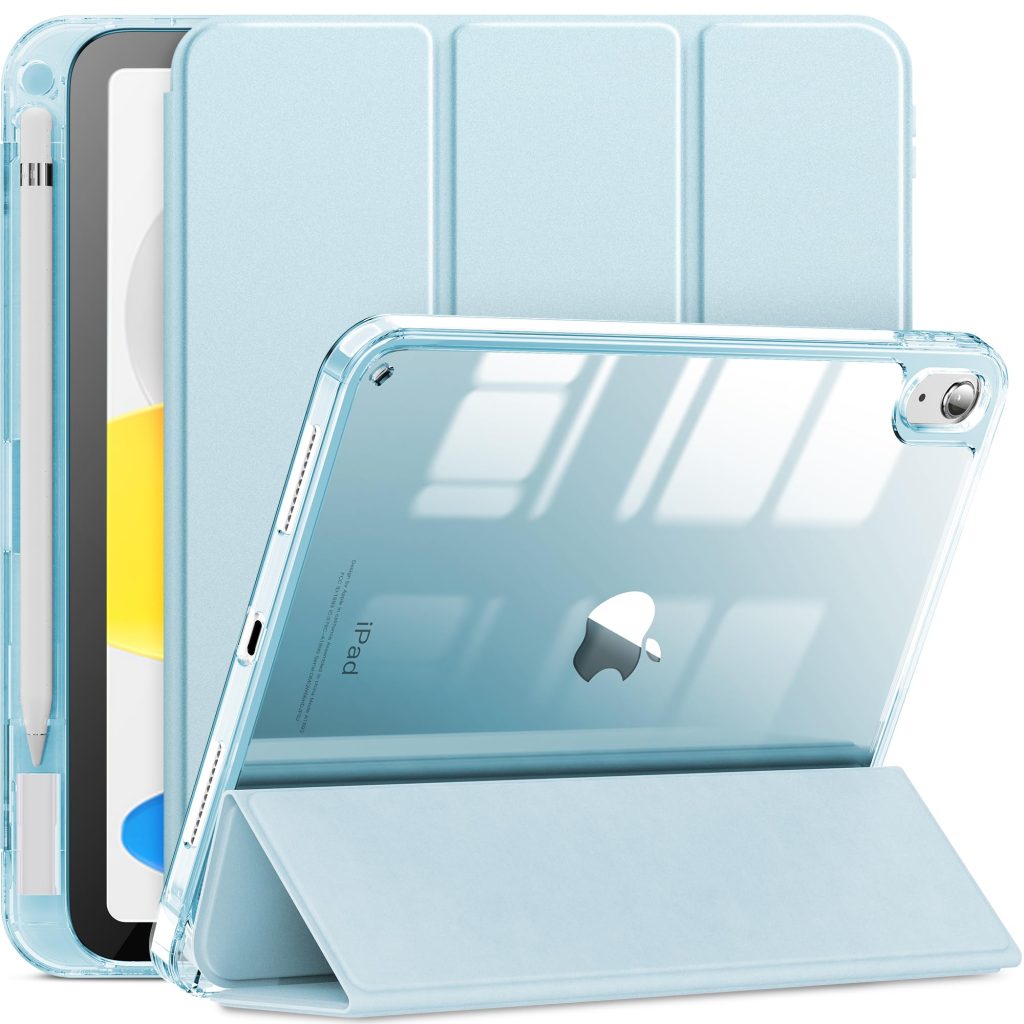
How to Choose an iPad Case for Artists

Magnetic iPad case versus folio case for drawing

iPad case with Apple Pencil holder for artists

The best iPad case for artists is different from a normal protective case. Artists need protection, Apple Pencil storage and angles that work for drawing.

Artist cases solve different problems

A basic case protects the iPad from scratches. An artist-friendly case also supports the way you use the iPad: drawing at an angle, carrying Apple Pencil, switching between desk and handheld use, and keeping the setup clean for school or studio work.

Features artists should look for

  • Apple Pencil holder: This keeps the Pencil from rolling away during travel or class.
  • Multi-angle stand: Drawing, typing and watching tutorials need different angles.
  • Detachable cover: A removable cover can make the iPad lighter for handheld sketching.
  • Clean back design: Transparent or minimal cases fit better with creator desk content.

Recommended AOIKTYE setup

AOIKTYE offers both minimal and drawing-focused case directions.

Practical buying tips

  • Always match the case to your iPad model number.
  • Think about where you draw most: desk, classroom, couch or travel.
  • If you use Apple Pencil daily, do not skip pencil storage.
  • Choose a case that supports your drawing posture, not just your favorite color.

Quick FAQ

Is a clear iPad case good for artists?

Yes. Clear cases are popular because they look clean and can show stickers, personal style or the original iPad color.

Should I choose a heavy protective case?

Only if you travel a lot or need stronger protection. For drawing, weight and angle matter too.

Final thoughts

A good artist case should disappear into your workflow. It protects the iPad, holds the Pencil and helps the screen sit at a better angle.

Posted on Leave a comment

Why Procreate Artists Use Shortcut Keyboards

iPad creator setup checklist

AOIKTYE shortcut keyboard for Procreate workflow

A Procreate shortcut keyboard is not only for professional illustrators. It is useful for anyone who repeats the same drawing actions again and again.

The hidden cost of tapping the screen all day

Procreate gestures are powerful, and Procreate also supports connected keyboard shortcuts. But if your drawing hand constantly leaves the canvas to undo, resize brushes or open panels, your flow gets interrupted. A shortcut keyboard moves those controls to your other hand.

Common actions that benefit from shortcuts

  • Undo and redo: Fast correction matters when sketching, coloring and testing ideas.
  • Brush size changes: Artists often change brush size dozens of times in a single session.
  • Color and eyedropper access: Quick color sampling keeps painting smoother.
  • Canvas and layer controls: Zooming, fullscreen and layer actions can be easier with physical keys.

Recommended AOIKTYE setup

Pairing a shortcut keyboard with a stable iPad angle creates a more desktop-like drawing workflow.

Practical buying tips

  • Put the keyboard on the side of your non-dominant hand.
  • Start by learning only five shortcuts you use every day.
  • Keep your iPad angle stable so your hands do not shift constantly.
  • Use shortcut labels until the layout becomes muscle memory.

Quick FAQ

Does Procreate support keyboard shortcuts?

Yes. Procreate supports keyboard shortcuts with a compatible connected keyboard.

Is a shortcut keyboard useful for beginners?

Yes, if beginners start with simple commands such as undo, redo, brush size and color picker.

Final thoughts

Shortcut keyboards are about keeping your drawing hand in the artwork. For Procreate users, that can make the whole process feel calmer and faster.

Posted on Leave a comment

How to Build a Clean iPad Drawing Desk Setup

Desk setup for watching art tutorials on iPad

Clean iPad drawing desk setup with stand

A clean iPad drawing desk setup helps you start faster, stay focused and keep your tools within reach. It does not need to be expensive or complicated.

Why desk setup matters for digital artists

When your iPad lies flat, your neck bends forward. When your Apple Pencil has no storage spot, it disappears. When every Procreate command requires reaching across the screen, your drawing rhythm breaks. A clean setup solves those small interruptions.

The core pieces of a clean setup

  • One main drawing angle: Use a stand or case angle that feels natural for sketching and coloring.
  • One side control zone: Keep shortcut keys, keyboard or references on the side of your non-dominant hand.
  • One storage habit: Give the Apple Pencil, tips and cable a consistent home.
  • One visual style: Choose cases and accessories that make the desk feel calm instead of cluttered.

Recommended AOIKTYE setup

A simple AOIKTYE drawing desk can start with four pieces.

Practical buying tips

  • Put the iPad at a slightly raised angle instead of fully flat.
  • Keep only the tools you use during a drawing session on the desk.
  • Use a phone stand for references or tutorials.
  • Choose neutral accessory colors if you want product photos and desk content to look cleaner.

Quick FAQ

Is a desk stand better than a case stand?

A desk stand is usually more stable, while a case stand is more portable. Many artists use both.

Can this setup work for students?

Yes. Students can use the same setup for note-taking, design work, video calls and drawing practice.

Final thoughts

A clean iPad drawing desk is really a low-friction workspace. If your tools are easy to reach and your screen angle feels right, creating becomes easier to start.

Posted on Leave a comment

Best iPad Accessories for Procreate Artists in 2026

iPad creator setup checklist

AOIKTYE iPad creator accessories for Procreate artists

A good iPad drawing setup is not about buying every accessory you see. It is about choosing the few tools that make Procreate feel faster, more comfortable and easier to use every day.

Why Procreate artists need a focused accessory setup

Procreate already supports powerful gestures and keyboard shortcuts, but many artists still lose time switching tools, adjusting brush size, zooming, undoing and managing layers. The right accessories help your hands stay in a natural drawing position while your workspace stays organized.

What to include in an artist-friendly iPad setup

  • Shortcut control: A small keyboard or shortcut pad keeps common commands under your non-dominant hand.
  • Stable viewing angle: A stand or multi-angle case helps you draw, watch tutorials and compare references more comfortably.
  • Apple Pencil comfort: Replacement tips, grips and paper-feel surfaces can improve control and reduce glassy slipping.
  • Protection with pencil storage: A case with a pencil holder is more useful for artists than a basic tablet cover.

Recommended AOIKTYE setup

For most beginners and daily creators, this compact setup covers the biggest pain points without turning your desk into a gadget pile.

Practical buying tips

  • Check your exact iPad model before buying a case.
  • Choose accessories that make drawing easier, not just prettier.
  • If you draw for long sessions, prioritize angle, hand comfort and shortcut access.
  • Keep your setup portable if you draw in class, cafes or shared workspaces.

Quick FAQ

Do I need a keyboard for Procreate?

You do not need one, but a keyboard can make common actions like undo, brush control and tool switching faster.

What should I buy first?

Start with Apple Pencil comfort, a protective case and one workflow tool such as a shortcut keyboard or stand.

Final thoughts

The best iPad accessories are the ones you actually use every day. Start with comfort, protection and speed, then build your setup around your drawing habits.